 Stripe + Rechnungskit
Stripe e‑invoicing for Germany: an e‑invoice from every payment
Stripe collects payments reliably, but it does not create e-invoices under EN 16931, and for B2B invoices in Germany these become mandatory step by step from 2027. Rechnungskit automatically turns every Stripe payment and subscription into a finished German invoice.
- ZUGFeRD invoice with your own number range, validated against EN 16931
- GoBD archive with checksum, refunds become cancellation invoices
- DATEV export with revenue, Stripe fees and payouts
Stripe takes the payment. The invoice is your job.
From 2027, businesses in Germany with more than 800,000 euros in prior-year revenue must send B2B invoices as e-invoices, and from 2028 all businesses must. Stripe itself states that Billing and Invoicing do not create e-invoices directly. Archiving and bookkeeping are left open as well. Rechnungskit takes over this part while your payments keep running through Stripe.
- Invoicing and Billing create PDFs, not e-invoices under EN 16931
- No GoBD claim for the invoices, invoice links expire
- Payouts as a lump sum minus fees, with no booking entries
- No DATEV export, only through third parties
- ZUGFeRD 2.5 under EN 16931, XRechnung automatically for customers with a Leitweg-ID
- Your own gapless number range, a cancellation invoice from every Stripe refund
- GoBD archive, immutable and with a SHA-256 checksum
- Every payout split into payments, refunds and fees, as a DATEV batch
From the Stripe payment to the booking at your tax advisor
Stripe stays your payment provider. Rechnungskit reads every payment via webhook, issues the invoice and hands over the bookings.
- Checkout, Payment Link or API
- Stripe Billing (subscriptions)
- Invoice with payment terms

- Your own number range
- ZUGFeRD 2.5, validated against EN 16931
- Refund becomes a cancellation invoice

- Revenue by VAT rate
- Stripe fees as a separate expense
- Payouts through the transit account
- GoBD archive with checksum
- XRechnung for a Leitweg-ID
Four steps from payment to booking.
- 01ConnectConnect your Stripe account in a few minutes. No code needed.
- 02ImportRechnungskit imports every Stripe payment and matches it.
- 03ErzeugenEvery payment becomes a validated e-invoice under EN 16931.
- 04ArchiveThe invoice is archived to GoBD standards and is ready for the DATEV export.
Every format Stripe doesn't deliver.
Why Stripe alone is not enough for German invoices
Stripe is excellent at processing payments. The invoice afterwards, though, is a PDF or a receipt, and Stripe itself states that Billing and Invoicing do not create e-invoices directly. For B2B invoices in Germany, the e-invoice under EN 16931 becomes mandatory step by step from 2027. On top of that you need a GoBD-compliant archive and bookings your tax advisor (Steuerberater) can take over without rework. What Stripe Invoicing and Billing can do and what is missing is covered in Stripe invoices (German). If you issue individual invoices in Stripe, the guide Stripe Invoicing (German) walks you through creating them, the costs and the settings for German invoices.
This is where Rechnungskit comes in. As soon as a Stripe payment arrives, Rechnungskit matches it to the right order (German), creates a ZUGFeRD invoice under EN 16931 and stores it in line with GoBD. Customers with a Leitweg-ID, such as public authorities or universities, receive the same invoice as XRechnung 3.0. The DATEV export (German) hands revenue, fees and payouts to your tax advisor; how the bookings behind it look is explained in Exporting Stripe to DATEV (German).
Already using a partner app from the Stripe App Marketplace or a converter like Fizard? The comparison between Stripe and Rechnungskit (German) shows cell by cell what Stripe covers itself, and the comparison with Fizard (German) shows how converting the Stripe invoice differs from issuing your own. For SaaS providers, e-invoicing for SaaS (German) sums up the whole process.
How to connect Stripe: create the API key
To connect, you need a Stripe API key. You create it in a few steps in your Stripe Dashboard and then add it in Rechnungskit under Connections, Connect. Rechnungskit sets up the webhook automatically, so there is nothing to program.
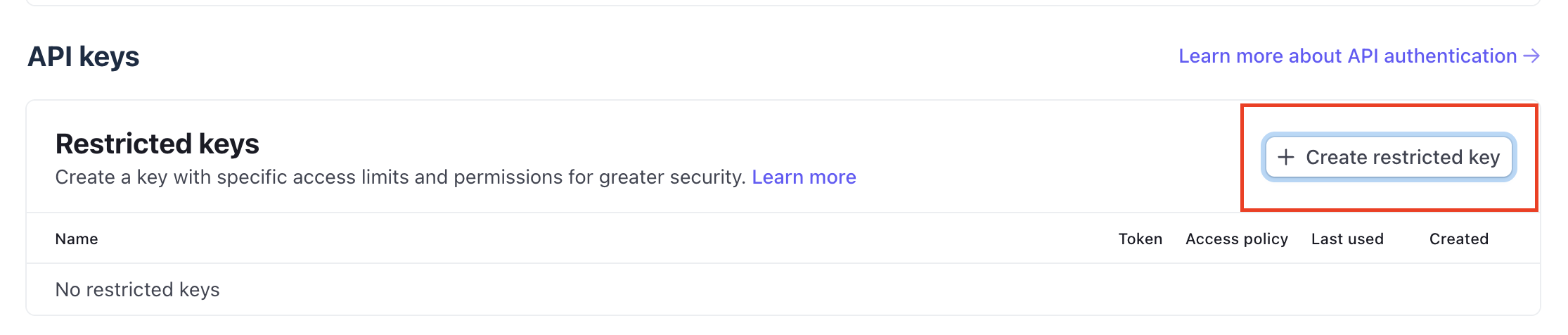
1. In the Stripe Dashboard, open Developers, API keys and click "Create restricted key" in the "Restricted keys" section. A restricted key gets exactly the permissions Rechnungskit needs, which makes it the safe choice.
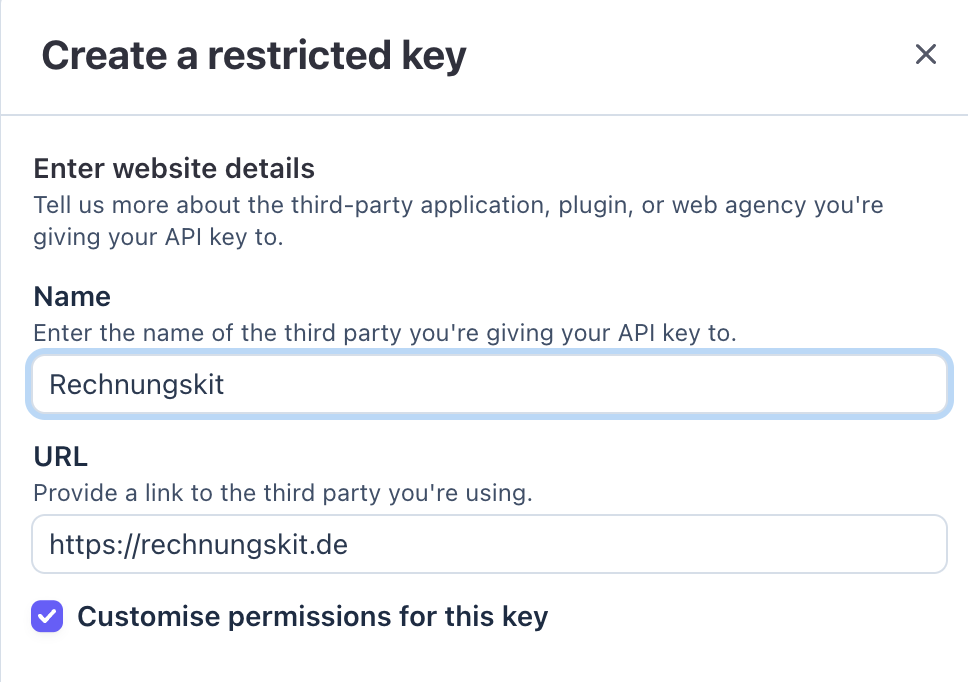
2. Enter the details of the third-party application and tick "Customise permissions for this key". Use "Rechnungskit" as the name and https://rechnungskit.de as the URL. Important: Stripe now expects a defined permission policy for keys given to third-party applications. So tick "Customise permissions for this key" and set the permissions in the next step. Without a defined policy, the key cannot be used as intended.
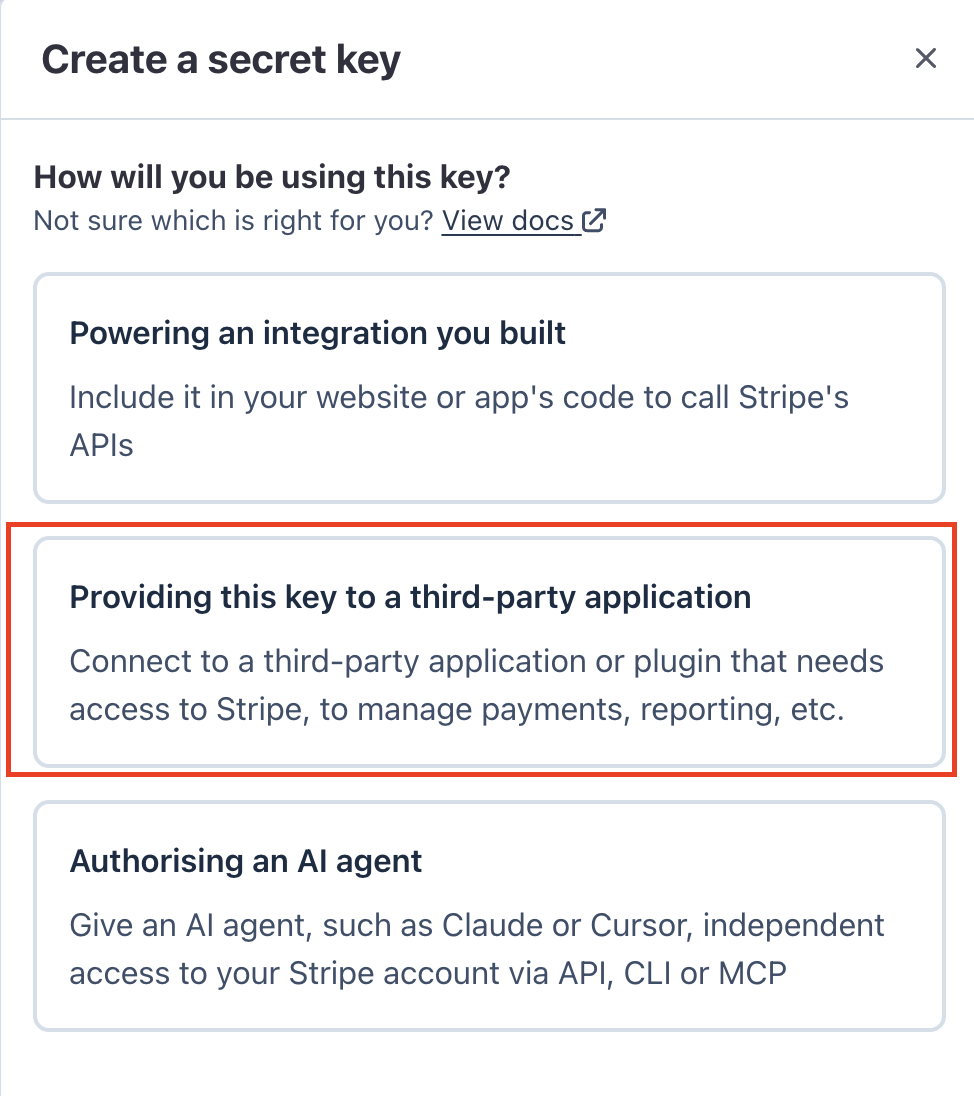
Alternatively, you can create a standard key via "Create secret key". If Stripe then asks what the key is for, choose "Providing this key to a third-party application" (Rechnungskit is the third-party application), not "Powering an integration you built" and not "Authorising an AI agent". Here too, set a defined permission policy as described below.
3. Set the following permissions. Rechnungskit mostly just reads. It needs a few read permissions and a small number of write permissions for the automatic webhook setup and, if you use them, for Stripe subscriptions and the Rechnungskit checkout via Stripe. Everything else can stay on "None".
| Permission (Stripe editor) | Access | Used for |
|---|---|---|
| Payment Intents | Read | Fetching payments (payout healing, recovery) |
| Charges | Read | Charge details, refunds |
| Payouts | Read | Payout reconciliation |
| Balance transactions | Read | Line items per payout |
| Products and prices | Read | Catalog import |
| Webhook endpoints | Write | Automatic webhook setup when connecting |
| Only for Stripe subscriptions and Stripe invoices: Invoices, Customers, Tax rates | Read | Billing ingestion |
| Only for Stripe invoices with payment terms (German): Funding Instructions | Write | Your customer's bank details (virtual IBAN) for the transfer |
| Only for the Rechnungskit checkout via Stripe: Checkout Sessions | Write | Payment pages |
| Only for Rechnungskit subscriptions via Stripe: Checkout Sessions, Customers, Payment Intents, Payment Methods | Write | Setting up the mandate, triggering recurring charges |
| Only for taking over subscriptions from Stripe Billing: Subscriptions | Write | Importing subscriptions and ending them at period end |
You can leave all other permissions on "None", including the billing meter events.
Stripe then creates the key and shows it exactly once. Copy it and paste it into the Stripe card in Rechnungskit under Connections, Connect. From then on, Rechnungskit reads incoming payments automatically.
Invoices with payment terms: the customer pays later
If you send invoices with payment terms in Stripe, Rechnungskit can create the e-invoice as soon as the invoice is sent, with your customer's virtual Stripe IBAN and the Stripe number as the payment reference. Stripe matches the bank transfer, and Rechnungskit closes the open item. The feature is a switch in the document rules and also needs the Funding Instructions permission (Write). Everything about it is in Stripe invoice with payment terms (German).
Payments and subscriptions (Stripe Billing): one connection, two cases
However you get paid in Stripe, Rechnungskit turns it into the right invoice over the same connection:
- Regular payments (Checkout, Payment Link, API): Rechnungskit matches the payment to the right order and creates the e-invoice from it.
- Stripe Billing (subscriptions): Here Stripe issues the subscription invoice itself, with line items, VAT rates and service period. Rechnungskit reads exactly this data and turns it into a complete ZUGFeRD invoice with your number, instead of a bare payment without details.
The service period goes straight from Stripe onto the invoice and into the e-invoice. If it extends beyond the invoice month, as with an annual subscription, the DATEV export (German) books the deferred revenue (pRAP under § 250 (2) HGB) automatically, to the day across the months and across the year end. This requires that you use accrual accounting and that the pRAP account is set up with your tax advisor. With EÜR (cash-basis accounting) there is no deferral, and the period appears on the invoice for information only.
For Stripe subscriptions: turn off Stripe's invoice emails
Stripe automatically creates its own invoice for every subscription payment. You cannot turn that off, but you can turn off sending it to your customers, and you need to: the Rechnungskit invoice is the one that counts for tax purposes. If Stripe keeps sending, your customers get two invoices for the same purchase.
To do this, go to Billing in the Stripe Dashboard and turn off the customer emails: switch off "Send finalized invoices and credit notes to customers" and, under customer emails, the receipt for successful payments. Payment collection and webhooks are not affected.
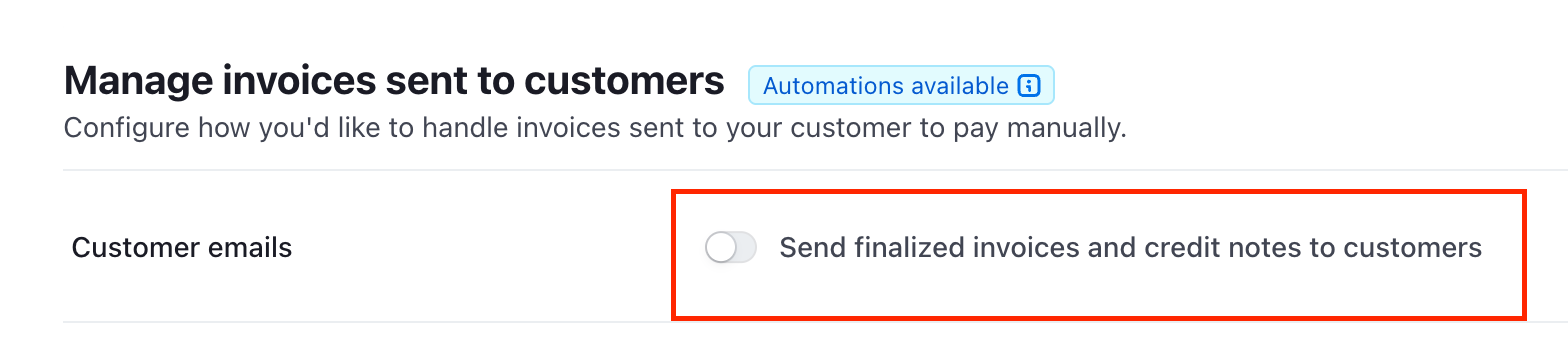
After you connect, Rechnungskit reminds you of this step right on the Stripe connection, with a direct link to the right place in the Stripe Dashboard. Once you have turned off the emails, you confirm it there once and the notice disappears.
Stripe and e-invoicing: FAQ
Connect Stripe, e-invoicing done.
Create an account, connect your payment provider, check everything in free test mode. Billing starts when you go live.
Start for free