Connect Stripe
Updated
You connect Stripe with a single key; Rechnungskit sets up everything else automatically. Every Stripe payment, every subscription invoice from Stripe Billing and every Stripe invoice with a payment term becomes an e-invoice with your number range, emailed to your customer if you want. In the DATEV export, Rechnungskit then books the payment against the customer account (Debitor), the Stripe fees and the payout.
 PaymentCheckout, Payment Link or API
- Detects the pathper transaction, nothing to switch
- Creates the e-invoiceZUGFeRD with your number range, in the GoBD archive
- Sends itby email to your customer, if you turned sending on
 PaymentClearing account an customer account, per payment
Setup
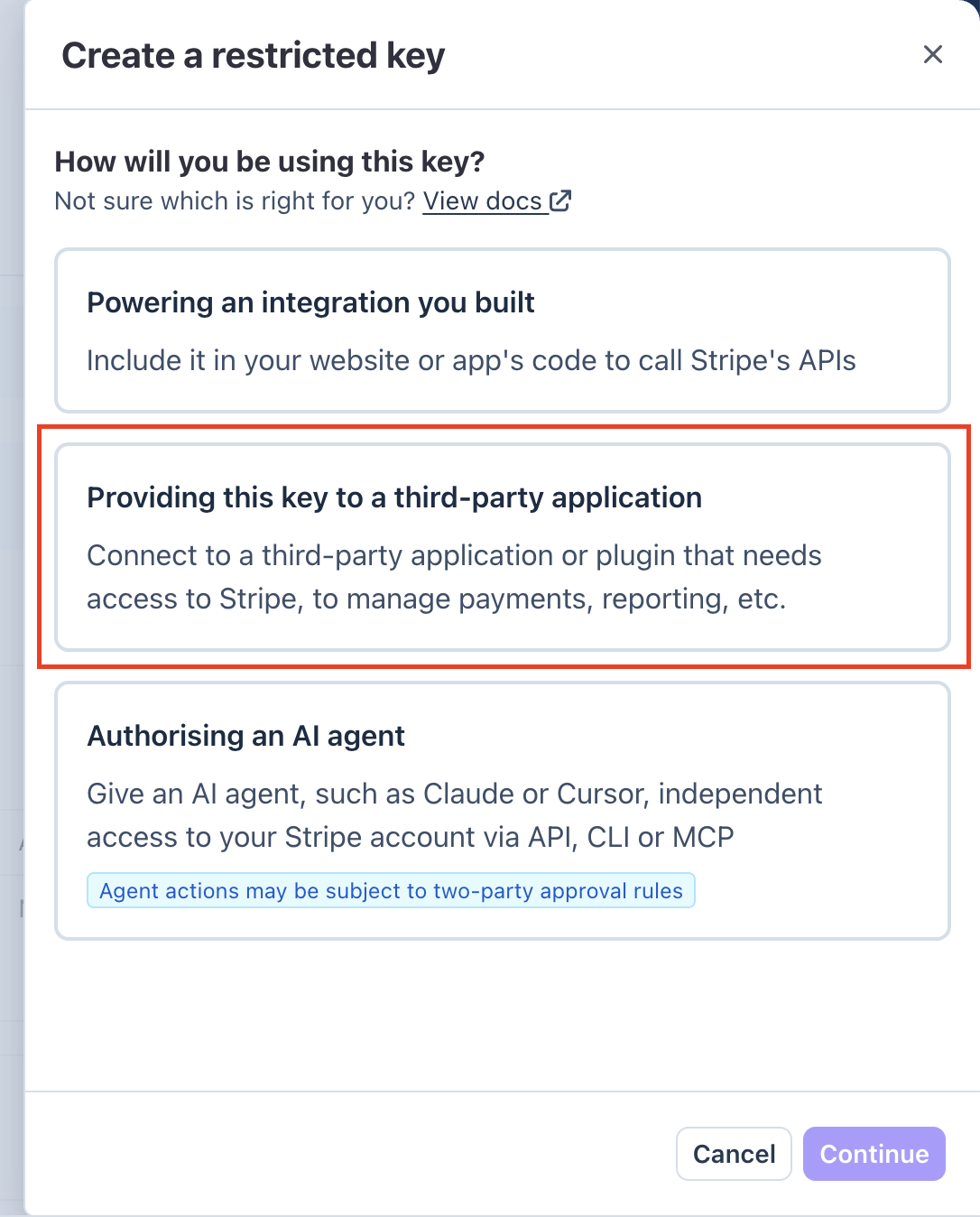
Stripe now requires a defined permission policy for keys given to third-party applications. A new standard secret key without defined permissions no longer works for this, so you create a restricted key.
In the Stripe dashboard, open Developers → API keys and click "Create restricted key" under "Restricted keys".

If Stripe asks how you will use the key, choose "Providing this key to a third-party application", because Rechnungskit is the third-party application. Don't pick "Powering an integration you built" or "Authorising an AI agent".
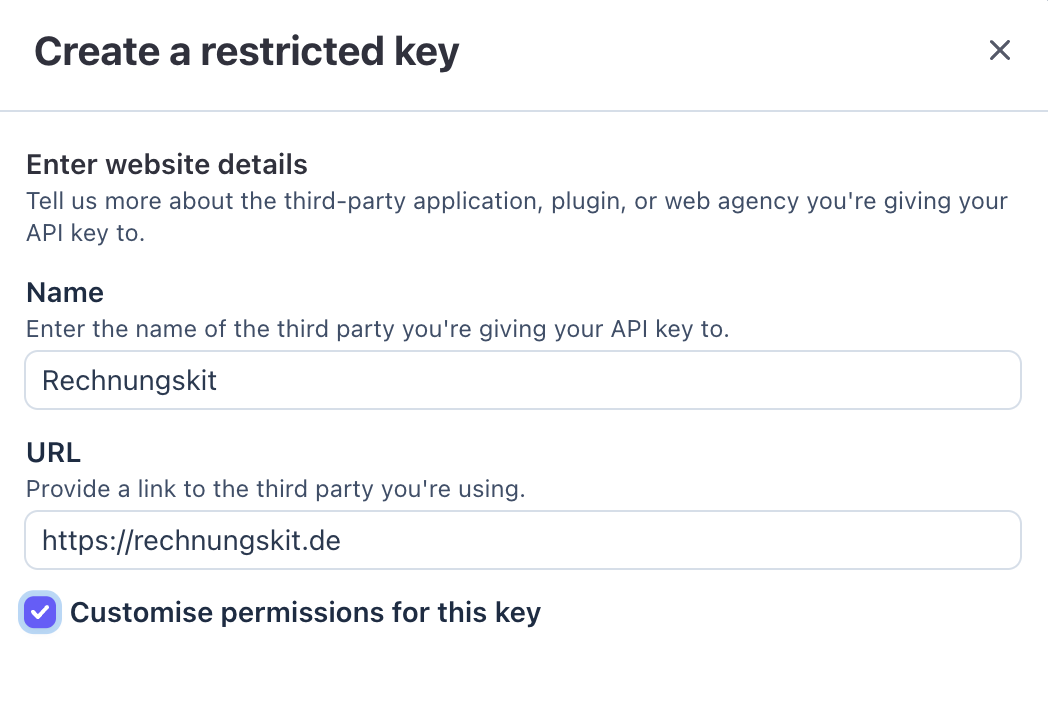
Enter "Rechnungskit" as the name and https://rechnungskit.de as the URL, and tick "Customise permissions for this key". Then set the permissions as shown in the table below.
Create the key and copy it. Use the live key (rk_live_...), even if you are only testing Rechnungskit. Rechnungskit mostly just reads and does not initiate payments on its own. Charges only happen when you sell through the Rechnungskit checkout or Rechnungskit subscriptions yourself (see below). A test key (rk_test_... or sk_test_...) connects Stripe's empty sandbox, where your real payments never show up, so no data arrives in Rechnungskit. To try things out safely, use the live key plus Rechnungskit's test mode: only TEST documents are created there, and nothing is sent or exported. For checkout and subscriptions in test mode, you add the test key separately in the "Test credentials" field below the card, see Checkout and subscriptions in test mode.
Paste the key at Stripe under Connections → Connect. Rechnungskit checks it directly against your Stripe account.
Rechnungskit creates the webhook in your Stripe account automatically, including signature verification. You don't need to configure anything in the Stripe dashboard.
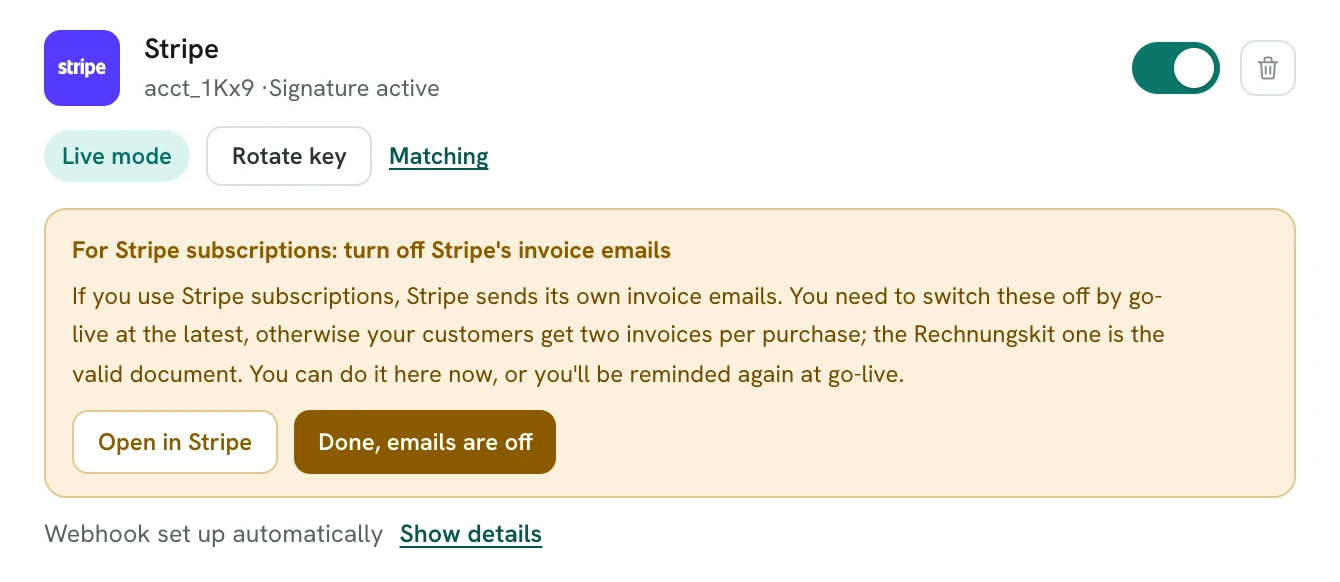
This is what the connected Stripe card looks like:
What the Stripe connection brings overall is shown on the integration page rechnungskit.de/en/integrations/stripe.
Key permissions
The table follows the order of Stripe's dialog. "Write" includes "Read". Permissions marked "always" are needed by every connection, the others only for the feature named. If a permission appears twice in the table and you need both features, set it to "Write".
| Stripe area → permission | Setting | Needed for |
|---|---|---|
| Core → Balance | Read | always splitting payouts into their items |
| Core → Balance Transaction Sources | Read | always finding the payment or refund behind each payout item |
| Core → Charges and Refunds | Read | always payment details and refunds |
| Core → Customers | Read | only if you use Stripe subscriptions (Billing) or Stripe invoices with a payment term |
| Core → Customers | Write | only if you use Rechnungskit subscriptions through Stripe or send API orders with "stripe_transfer" |
| Core → Funding Instructions | Write | only if you use Stripe invoices with a payment term (your customer's virtual IBAN) |
| Core → Payment Intents | Read | always fetching payments; Rechnungskit also checks the key with it |
| Core → Payment Intents | Write | only if you use Rechnungskit subscriptions through Stripe (recurring charges) or "stripe_transfer" |
| Core → Payment Methods | Read | only if you take over subscriptions from Stripe Billing (checking their payment methods) |
| Core → Payment Methods | Write | only if you use Rechnungskit subscriptions through Stripe (the mandate's payment method) |
| Core → Payouts | Read | always payouts |
| Core → Products | Read | always importing Stripe products into the product catalog |
| Core → Setup Intents | Read | only if you use Rechnungskit subscriptions through Stripe (mandate for subscriptions with a trial) |
| Billing → Invoices | Read | only if you use Stripe subscriptions (Billing) or Stripe invoices with a payment term |
| Billing → Tax Rates | Read | only if you use Stripe subscriptions (Billing) |
| Billing → Tax Rates | Write | only if you use the Rechnungskit checkout through Stripe (creates the tax-inclusive rates for the payment page) |
| Billing → Prices | Read | always prices for the products |
| Billing → Subscriptions | Write | only if you take over subscriptions from Stripe Billing (reading them and ending them at period end) |
| Checkout Sessions | Write | only if you use the Rechnungskit checkout or Rechnungskit subscriptions through Stripe |
| Webhook Endpoints | Write | always setting up the webhook automatically |
| Everything else | None | including the Billing meter events |
If permissions are missing, the connect dialog names the basic ones; the full list is this table.
What happens automatically
- Incoming payments arrive in real time by signed webhook and are matched to orders.
- Refunds automatically create the matching cancellation invoice (Storno), to the cent for partial refunds too.
- Chargebacks (disputes) don't create an automatic cancellation invoice; they reopen the item and land in your tasks for clarification, including the dispute fee.
- Subscriptions: each recurring payment becomes its own invoice with the correct service period.
- Stripe Billing as a data source: if you use Stripe subscriptions or Payment Links, the order data comes from Stripe too, so you don't need a shop. Each Stripe invoice is imported automatically as an order with real line items, and Stripe products land in the product catalog (Products → All products, "Sync products"). To do this, choose "Stripe subscriptions (Billing)" as the sales basis in the mapping of the Stripe connection; for new connections without a shop this is preset automatically. You don't need a second connection.
- Important with subscriptions: switch off Stripe's own invoice emails, or customers get two invoices for the same purchase (the Rechnungskit invoice is the document that counts for tax purposes). In the Stripe dashboard, under Billing, deactivate the option to email finalized invoices and credit notes to customers. Rechnungskit reminds you of this step in two places: as a short notice on the Stripe connection (Connections → Connect) and once more in detail at go-live, which is exactly when it matters, because Rechnungskit sends nothing in test mode anyway. In either place you confirm once that it's switched off, and the notice disappears everywhere.
- There's nothing to do about the Stripe webhook: Rechnungskit registers it in your Stripe account automatically when you connect; the URL shown is only there for checking.
Stripe as payments or Stripe Billing (subscriptions): Rechnungskit detects it automatically
It is a single Stripe connection, and Rechnungskit tells the cases apart automatically per transaction. You don't need to switch anything:
- Regular payment (Checkout, Payment Link, API): Rechnungskit builds the document from the payment and the matched order.
- Stripe Billing (subscription): Stripe issues the subscription invoice with line items itself, and Rechnungskit reads exactly this data and turns it into a full e-invoice with your number range. If you use both in parallel, both paths run through the same connection.
Stripe PaymentsPaymentStripe BillingSubscriptionStripe invoices with a payment term (pay by invoice)
If you send invoices in Stripe that your customer pays later (in Stripe "Send invoice", technically collection_method send_invoice), Rechnungskit can create the e-invoice as soon as Stripe finalizes the invoice. Your customer then gets it before paying, with a payment term.
- In StripeInvoice finalized
- RechnungskitE-invoice with virtual IBANPayment reference: exactly the Stripe number
- Your customertransfers the moneybank transfer only, no payment link
- Stripematches the payment
- RechnungskitItem paidautomatic
How to turn it on:
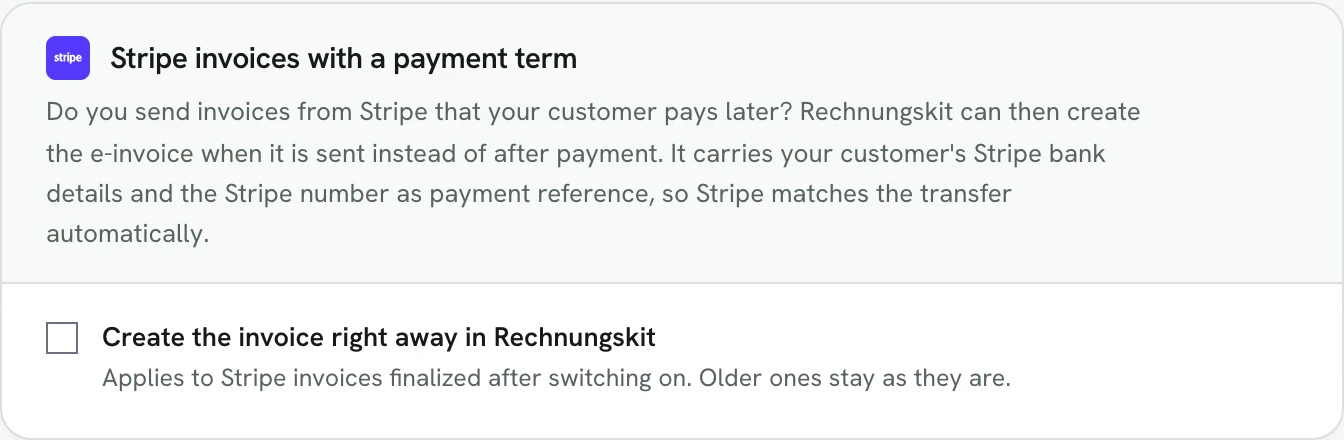
- Open Document rules, card "Stripe invoices with a payment term", and tick "Create the invoice right away in Rechnungskit". The toggle is off by default. While it is off, the document is created as before, only when Stripe reports the payment.
- When you switch it on, you confirm that Stripe's invoice emails and reminders are off, and Rechnungskit immediately checks the required permission on the Stripe key.
- The toggle only applies to invoices Stripe finalizes after you switch it on. Stripe may already have sent older ones itself, so they stay as they are. Subscriptions with automatic collection are not affected.
What the invoice shows:
- Your customer's Stripe bank details. Stripe gives each customer their own virtual IBAN. If the customer transfers money there, Stripe automatically applies it to their open invoice.
- The Stripe invoice number as the payment reference, with nothing added. Stripe only recognizes the invoice if exactly this number is in the payment reference. If your customer adds anything, Stripe matches by amount and may pick a different invoice when several open invoices have the same amount. That is why our invoice number is deliberately not in the payment reference.
- The payment term from Stripe, so both sides name the same date.
The invoice email to your customer also contains a transfer block with amount, due date, IBAN, BIC, account holder and payment reference. Payment is by bank transfer only; these invoices have no payment link. When your customer pays, Rechnungskit marks the open item under /receivables as paid automatically.
Whatever you change on the invoice in Stripe afterwards follows automatically in Rechnungskit:
- If you void it, a cancellation invoice is created and the open item closes.
- A credit note on the open invoice becomes a correction invoice and lowers the open amount.
- If you mark it as uncollectible, the open item is written off, without a cancellation invoice. Your tax advisor books the bad debt.
- If Stripe cannot match a transfer to an invoice, the money stays in the customer's Stripe balance. Rechnungskit creates a task for this. Apply the balance to the customer in Stripe, and the task closes automatically. If you wait too long, Stripe's deadlines apply: after 75 days Stripe tries to return the money to the customer, and without bank details it goes into your Stripe balance by day 90.
For the bank details, the Stripe key also needs the permission "Funding Instructions" Write. If it is missing, Rechnungskit does not create the invoice and sends nothing. We never put in your own bank's IBAN, because the money would then bypass Stripe and the Stripe invoice would stay open. You get an email with instructions right away, a red notice appears on the dashboard, and the card in the document rules shows how many invoices are waiting. After adding the permission, click "Fixed, check now" there: Rechnungskit checks the permission immediately, creates the held invoices and shows you which ones were created. Without a click, Rechnungskit checks again every four hours. If the permission goes missing again later, the task reopens.
Important: switch off invoice emails and payment reminders in Stripe, or your customer also gets Stripe's own invoice with a different number. This also applies if your application explicitly sends invoices through the API (invoices/send): that call sends Stripe's email despite the setting.
If the invoice comes from your own application instead of Stripe, there is a second way without a Stripe invoice and without the Invoicing fee: the order through the API with paymentGateway "stripe_transfer" (details on the help page about the API connection). Everything is described in detail publicly at rechnungskit.de/en/guides/stripe-invoice-payment-terms.
Service period for subscriptions
For a Stripe Billing invoice, the service period is taken automatically from the Stripe data, specifically from the individual line items (for subscriptions the invoice header describes the billing cycle, not the service). If the line items carry different periods, the document shows the span across all of them. The period appears on the document and, structured, in the e-invoice (ZUGFeRD BG-14). If a line item has no period, it stays empty; no error occurs.
Deferred revenue (pRAP) in the DATEV export
If a subscription's service period extends beyond the invoice month (for example an annual subscription or a period across the turn of the year), Rechnungskit can book the deferred income (passive Rechnungsabgrenzung, pRAP) under § 250 Abs. 2 HGB automatically in the DATEV export: in the invoice month the deferral (revenue account an pRAP) and in every following month the release (pRAP an revenue account), net and spread over the months according to the deferral method chosen in the DATEV settings (monthly, by day on a 30/360 basis, or by calendar day). "An" is the German booking notation: debit account an (to) credit account.
An example with the "monthly" method: a customer pays for an annual subscription of €1,200 net in January, service period January 1 to December 31. The invoice books €1,200 of revenue. In January the export moves €1,100 into the pRAP, the share for February through December (SKR03 8400 an 0990, SKR04 4400 an 3900). From February through December it releases €100 at each month end (0990 an 8400, or 3900 an 4400). That way each month carries €100 of revenue. For a prepayment, VAT already arises when the money is received (§ 13 Abs. 1 Nr. 1 Buchst. a Satz 4 UStG), so the deferral only moves the net amount. At €1,200 the receipt is above €800, so the tax option to skip the item (§ 5 Abs. 5 Satz 2 EStG) does not apply here.
- JanuaryInvoice, €1,200 revenue€100 of it for January
- January, deferral€1,100 into the pRAP8400 an 0990 (SKR03) · 4400 an 3900 (SKR04)
- February to November€100 released each month0990 an 8400 · 3900 an 4400, at month end
- Decemberlast €100, pRAP emptyEach month carried €100 of revenue
This happens automatically when all three conditions are met:
- You prepare a balance sheet (not EÜR). Under the cash-basis income statement (Einnahmen-Überschuss-Rechnung, EÜR) the cash principle applies; there is no deferral, and the export deliberately does not book one.
- The pRAP account is set up and active in the DATEV settings (SKR03 0990 or SKR04 3900). You set this up once with your tax advisor.
- The line item is recognized as a time-based service (subscription, SaaS, digital) with a determinable period.
If one of these conditions is missing, the service period is still always on the document and in the e-invoice, but your tax advisor then books the deferral manually. Which accounts are used and whether a deferral is booked is up to your tax advisor; the software does not force it.
Tax calculation: you don't need Stripe Tax
VAT calculation for your invoices is included in Rechnungskit at no extra cost: tax rate per country and product category (official TEDB rates, updated monthly), OSS threshold monitoring, reverse charge with qualified VAT ID (USt-IdNr.) verification, and the small business rules (Kleinunternehmer). You don't need a paid add-on like Stripe Tax for invoicing with Rechnungskit. For context: Rechnungskit calculates the tax for the document after the payment; it does not change the amount your checkout collects. Which price the customer sees and is charged in the checkout is still controlled by your shop or your Stripe setup.
What the Stripe connection costs
The Stripe connection is included in Rechnungskit, and Rechnungskit charges no markup per payment (Rechnungskit's prices meter documents, not payment volume, see /en/pricing). What remains are Stripe's own transaction fees, which you pay directly to Stripe. According to Stripe's standard price list for Germany (stripe.com/de/pricing, as of September 2026): 1.5 % + €0.25 per standard EEA card, 2.8 % + €0.25 per premium EEA card, 3.15 % + €0.25 for international cards and €0.35 per SEPA direct debit; individual terms agreed with Stripe take precedence. Rechnungskit shows these Stripe fees separately in the accounting automatically (see the next section).
Fees and payouts
Stripe reports every payout by webhook. Rechnungskit splits it automatically into its parts: included payments, refunds and Stripe fees, each as its own item for the accounting (fees are not netted against revenue but shown separately). You see the result under /payouts; differences land in the clarification list.
In the DATEV payments export, Rechnungskit books each Stripe payment individually to a dedicated Stripe clearing account (Geldtransit, preset SKR03 1360, SKR04 1460), against the customer account (Debitor) of the related invoice. Revenue and VAT come only from the revenue batch. The fees Stripe withholds from the payments are booked collectively per payout to bank charges (Nebenkosten des Geldverkehrs, preset SKR03 4970, SKR04 6855) against the clearing account, with the payout reference in the booking text and preset with DATEV tax key 506 for reverse charge on services from other EU countries. The payout books as bank an clearing account (preset SKR03 1200, SKR04 1800), a refund as the exact reverse of the payment through the same clearing account (customer account an clearing account). A chargeback books the clearing account on the credit side against the customer account, which reopens the receivable. Your tax advisor can change all accounts and keys under Settings, DATEV.
A worked example with sample figures: a customer pays €119.00 with a standard EEA card. Stripe keeps a €2.04 fee (1.5 % + €0.25, rounded) and pays out €116.96. With the collective customer account (SKR03 1400, SKR04 1200) these bookings result:
- Invoice (revenue batch): customer account an revenue 19 %, €119.00, so SKR03 1400 an 8400, SKR04 1200 an 4400.
- Payment: clearing account an customer account, €119.00, so SKR03 1360 an 1400, SKR04 1460 an 1200.
- Fee: bank charges an clearing account with tax key 506, €2.04, so SKR03 4970 an 1360, SKR04 6855 an 1460.
- Payout: bank an clearing account, €116.96, so SKR03 1200 an 1360, SKR04 1800 an 1460.
After that, the customer account and the clearing account are back at zero.
What Rechnungskit does not do here: it does not download or archive Stripe's monthly fee invoice. You find it in the Stripe dashboard under Settings, Documents (Stripe provides it by the 10th of the following month) and pass it to your tax advisor. Fees that Stripe deducts from the balance as separate items rather than per payment (for add-on products, for example) appear in the payout breakdown but are not booked as fees in the DATEV export; your tax advisor books these items from the Stripe invoice. The preset tax key assumes full input tax deduction; as a Kleinunternehmer (small business under the German VAT exemption) have your tax advisor adjust the fee mapping. Rechnungskit does not prepare the advance VAT return (Umsatzsteuer-Voranmeldung).
For context (not tax advice): Stripe provides its services for European accounts from Ireland and charges no VAT on its fees (Stripe Support, Taxation of Stripe fees). For a business in Germany the place of supply is Germany (§ 3a Abs. 2 UStG), you owe the tax on the fees yourself (§ 13b Abs. 1 and Abs. 5 UStG), and with full input tax deduction you deduct it again in the same month (§ 15 Abs. 1 Satz 1 Nr. 4 UStG). In the 2026 advance VAT return, the fees go in box 46 (tax base) and 47 (tax), the input tax in box 67. Kleinunternehmer owe the tax too, but have no input tax deduction and file an advance return for these months (§ 18 Abs. 4a UStG). The fees do not belong in the EC sales list (Zusammenfassende Meldung, ZM); it only contains your own supplies to EU businesses (§ 18a UStG). Whether Stripe's fees are fully or partly VAT-exempt as payment services (§ 4 Nr. 8 Buchst. d UStG) has not been expressly decided; your tax advisor clarifies this.
Stripe Technology Europe Ltd is Stripe's Irish company in Dublin, licensed by the Central Bank of Ireland as an e-money institution (reference number C187865). It provides the payment services and is therefore usually the sender of the Stripe payout on your bank statement. The contracting party for Stripe accounts in the EEA is Stripe Payments Europe Ltd. Booking entries for SKR03 and SKR04 with a worked example are public under Booking Stripe fees, and the ways to the DATEV batch under Stripe DATEV export.
Limits, stated plainly
- ✓ The key is stored encrypted and never shown again. To rotate it, simply enter a new one.
- ✓ As the key, you use a restricted key (rk_live_...) with the permissions from the table above. Rechnungskit technically also accepts a standard secret key (sk_live_...), for example on existing connections.
- ✗ A test key (sk_test_ or rk_test_) only connects Stripe's sandbox: no real payments come in and no real documents are created. So even for trying things out, enter the live key; Rechnungskit's test mode provides the protection.
- ✗ Rechnungskit does not match Stripe Payment Links or manually created payments without an order reference on its own. They need matching by order number or land in the tasks for clarification.
- ✗ Rechnungskit does not download Stripe's monthly fee invoice and does not prepare the advance VAT return (see Fees and payouts).
- ✗ Stripe Connect (marketplace) is not supported. Rechnungskit connects Stripe with a single account, and all documents are assigned to that account. If you run a platform through which connected merchants (connected accounts) sell to end customers, and you keep a commission (application_fee) per sale, Rechnungskit does not cover that at the moment. Connecting through the platform key would assign revenue and VAT to the wrong account, so it is deliberately not enabled. Background for the assessment: on a marketplace the respective merchant usually issues the end-customer invoice (the platform may at most generate it in the merchant's name), and the commission withheld is the platform's own revenue from the merchant with a separate invoice, not a reduction of the merchant's revenue. Who appears toward the end customer under the actual contracts and public presentation decides whose invoice is needed. The Stripe terms destination charge, direct charge or merchant of record don't settle that on their own. If this is relevant for you, let your tax advisor know and get in touch with us, and we'll look at your specific case.
Rechnungskit subscriptions through Stripe
Rechnungskit subscriptions can collect through your Stripe account instead of Mollie: under Settings, Connections, choose Stripe as the provider for subscriptions. The buyer sets up their payment method (card or SEPA direct debit) once on a page hosted by Stripe; the first charge happens right there, and Rechnungskit triggers the following charges automatically each period. Stripe Billing is not needed for this and is not changed. As usual, each charge becomes its own invoice with service period, GoBD archive and DATEV export. The key permissions you need are in the table above.
You can move existing Stripe Billing subscriptions to Rechnungskit subscriptions at the end of their period without customers setting up a new mandate (under Subscriptions, "Take over from Stripe Billing"). Details are on the help page Taking over from Stripe Billing.
Where to find it in the app
Rechnungskit is not a tax advisory or law firm. This article explains general principles and does not replace advice from a tax advisor (Steuerberater, § 5 StBerG) or a lawyer (§ 3 RDG). Rechnungskit is built for businesses based in Germany and prepares documents, tax rates and bookings automatically. How your specific case is treated remains your decision, ideally together with your tax advisor or a lawyer.