 PayPal + Rechnungskit
PayPal e‑invoicing for Germany: an e‑invoice from every payment
PayPal is everywhere in German e-commerce, and notorious in bookkeeping. Every payment carries its own fee, transfers to your bank account arrive with a delay, and buyer protection cases or refunds make matching even harder. Rechnungskit sorts out exactly this part.
PayPal takes the payment. The invoice is your job.
PayPal is everywhere in German e-commerce, and notorious in bookkeeping. Every payment carries its own fee, transfers to your bank account arrive with a delay, and buyer protection cases or refunds make matching even harder.
- PayPal processes the payment
- PDF receipt without a structured e-invoice format
- No German VAT logic per country
- No GoBD archive, no DATEV export
- Compliant e-invoice under EN 16931 (ZUGFeRD)
- Payments matched to orders automatically
- GoBD-compliant, tamper-evident archive with checksum
- DATEV export in one click
Four steps from payment to booking.
- 01ConnectConnect your PayPal account in a few minutes. No code needed.
- 02ImportRechnungskit imports every PayPal payment and matches it.
- 03ErzeugenEvery payment becomes a validated e-invoice under EN 16931.
- 04ArchiveThe invoice is archived to GoBD standards and is ready for the DATEV export.
Every format PayPal doesn't deliver.
How the PayPal integration works
Rechnungskit reads every PayPal transaction: the incoming payment, the PayPal fee, refunds and transfers to your bank account. The payment is linked to the order from your shop, and from that Rechnungskit creates a validated e-invoice in ZUGFeRD format, sends it automatically and archives it in an audit-proof way. Customers with a Leitweg-ID (the routing ID German public bodies use for e-invoices), such as government agencies or universities, receive the same invoice as XRechnung 3.0.
The PayPal fee doesn't disappear into revenue. It gets its own booking: gross revenue, fee and transfer kept apart, the way your tax advisor (Steuerberater) needs them for the DATEV export.
Guide: connect PayPal to Rechnungskit
The connection runs through an app of your own in your PayPal account. It takes about five minutes, and all you need is your PayPal business account. Access is read-only: transactions, fees, refunds and buyer protection cases. It cannot trigger payments or change settings in your PayPal account.
Step 1: create a live app in the Developer Dashboard
Open the PayPal Developer Dashboard and sign in with your PayPal business account. Make sure Live is selected at the top, not Sandbox. Rechnungskit needs live credentials to read your real payments, even while you are only trying Rechnungskit in test mode.
Click Create App and give it a name, for example "Rechnungskit". PayPal then creates a Client ID and a Secret Key (the key only appears after a click).
Step 2: turn on Transaction search
Check the boxes on the app page. Only two matter for Rechnungskit. Transaction search under "Add-on services" has to be turned on, because it is off by default. Through it Rechnungskit reads your transaction history including fees and transfers. Customer disputes is on by default and stays on; Rechnungskit uses it to detect buyer protection cases:
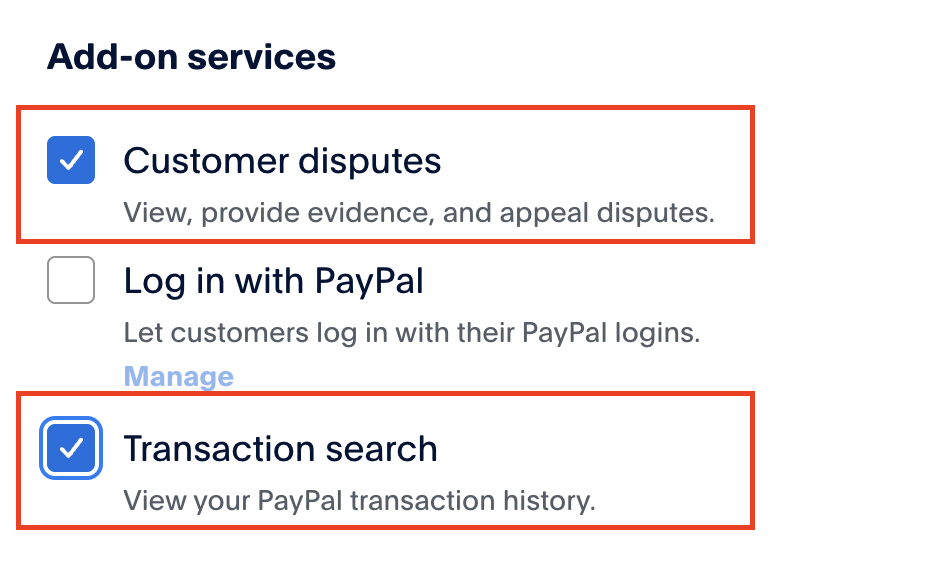
After you turn it on, PayPal releases the Transaction search data with some delay, which can take a few hours. Rechnungskit needs nothing else on that page (Expanded checkout, Log in with PayPal, SDKs, Vault, Subscriptions, Invoicing, Payment links, Payouts), so those boxes don't affect the connection. You can also skip the Live Webhooks section: Rechnungskit registers its notification URL by itself when you connect.
Step 3: enter the credentials in Rechnungskit
Copy the Client ID and Secret Key and enter both in Rechnungskit under Connections → Connect → PayPal. Rechnungskit checks the credentials against the PayPal API right away, detects live mode and sets up the notifications.
To match a payment to its order, Rechnungskit reads the PayPal fields invoice_id and custom_id. The PayPal plugins for WooCommerce, Shopware and Shopify write the order number there by default; in Rechnungskit you simply pick your shop as the source for matching. If the field is empty, Rechnungskit matches on amount and buyer email, and after that you can still assign the payment by hand. From then on every PayPal payment automatically gets its invoice. Once Transaction search is active, you can load the last few days with "Sync now" on the Payments page.
How Rechnungskit books PayPal in the DATEV export
In the DATEV export, PayPal gets its own transit account (Geldtransit), separate from Stripe, Mollie and the other providers. The default is 1362 in SKR03 and 1462 in SKR04. Every incoming payment, every PayPal fee (booked per transaction as its own entry) and every refund goes to this account. When you withdraw money to your bank account, Rechnungskit records it as a transfer from the PayPal transit account to the bank. Your tax advisor can reconcile the account directly against your PayPal statement. If they book PayPal on a different account, you change the mapping in the DATEV settings, on the “Payment accounts” tab.
PayPal and e-invoicing: FAQ
Rechnungskit is not a tax advisory or law firm. This article explains general principles and does not replace advice from a tax advisor (Steuerberater, § 5 StBerG) or a lawyer (§ 3 RDG). Rechnungskit is built for businesses based in Germany and prepares documents, tax rates and bookings automatically. How your specific case is treated remains your decision, ideally together with your tax advisor or a lawyer.
Connect PayPal, e-invoicing done.
Create an account, connect your payment provider, check everything in free test mode. Billing starts when you go live.
Try it now