Connect Shopify
Updated
The Shopify connection needs only your shop domain. You don't have to copy any credentials; you grant access directly at Shopify.
Is there a Shopify app? Yes: Rechnungskit is listed in the Shopify App Store. There are two equivalent ways: you install the app from the App Store and link it to your Rechnungskit account there, or you start in Rechnungskit under Connections → Connect with your shop domain and confirm access with a click at Shopify (OAuth). The app installs nothing in your theme or checkout; it reads order, payment and product data through the Shopify API and registers the webhooks it needs itself.
Setup
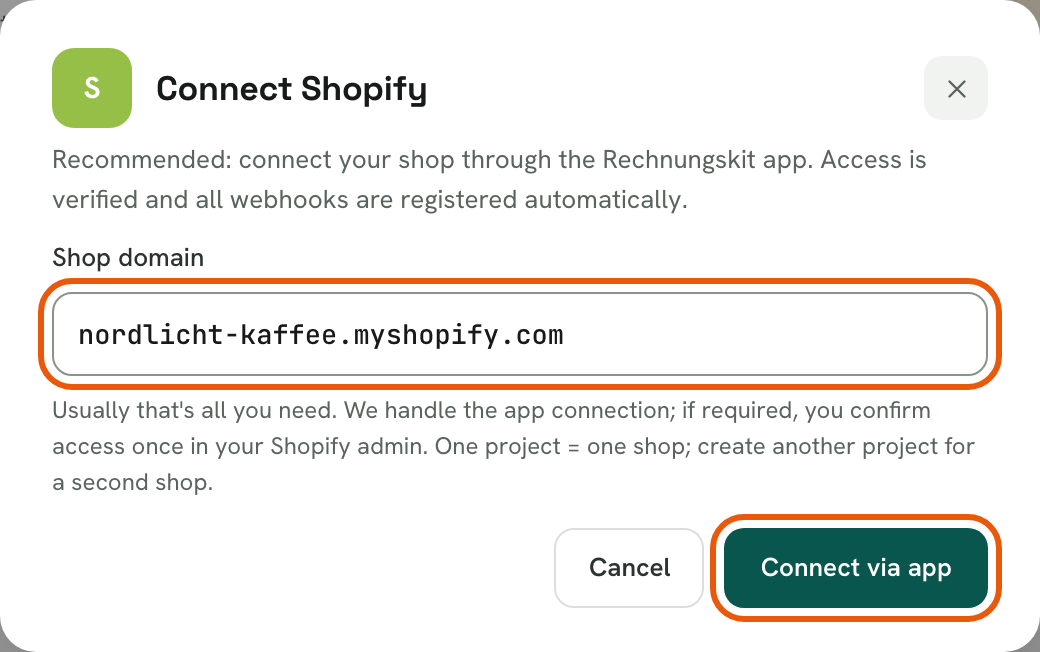
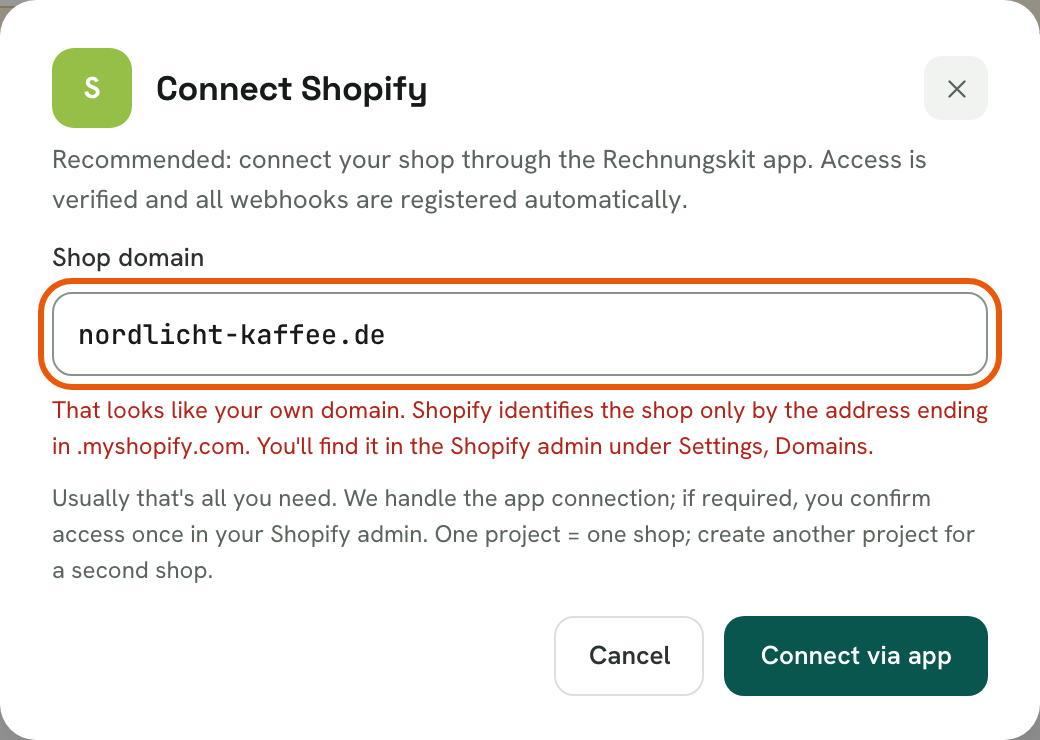
Under Connections → Connect, choose Shopify and enter your shop domain (for example your-shop.myshopify.com). Important: this means the permanent Shopify address ending in .myshopify.com, not your own domain like your-shop.com. You find it in the Shopify admin in the address bar or under Settings, Domains. If you enter your own domain, the input field points this out right away.
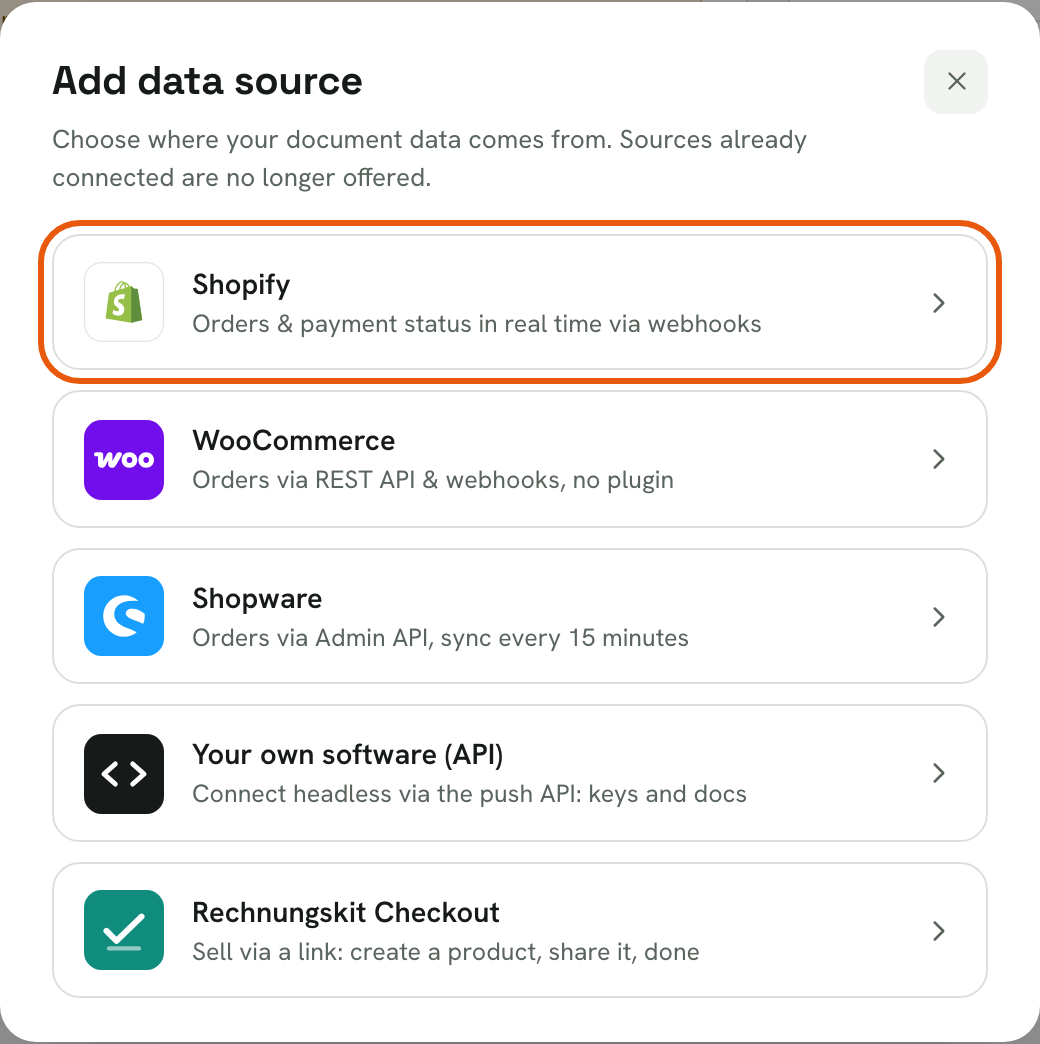
Under "Add data source", choose Shopify:
Then enter the shop domain and click "Connect via app":
A common mistake is entering your own domain. The field tells you right away:
You are redirected to Shopify and confirm access there.
Back in Rechnungskit, the connection is active. Rechnungskit registers the webhooks (orders, payments, refunds, fulfillment, products) automatically; you don't need to set anything up in Shopify.
What happens automatically
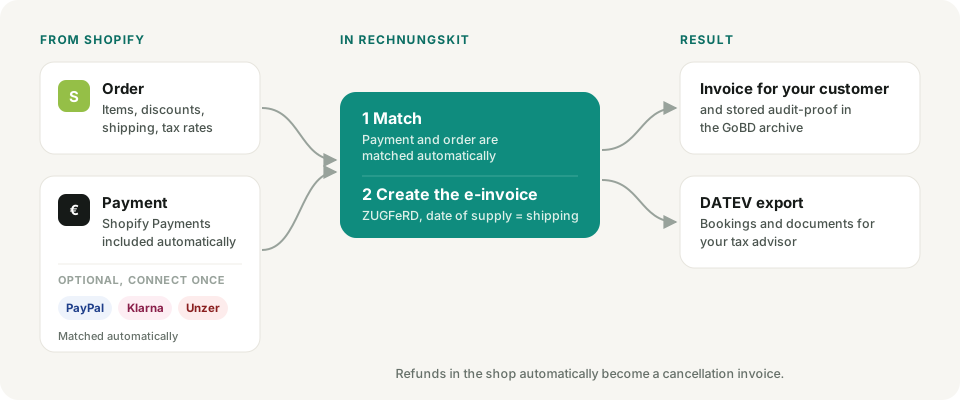
- Orders arrive in real time by webhook; a 4-hourly sync serves as a safety net.
- Shopify Payments is detected automatically and set up as a payment source, including fees and payouts. You don't need separate credentials for it.
- If you use PayPal directly next to Shopify Payments, those payments are matched unambiguously too. Some of them carry the order number; for the rest, Rechnungskit reads the PayPal transaction ID from the Shopify order and matches on that. See zahlungen-abgleich.
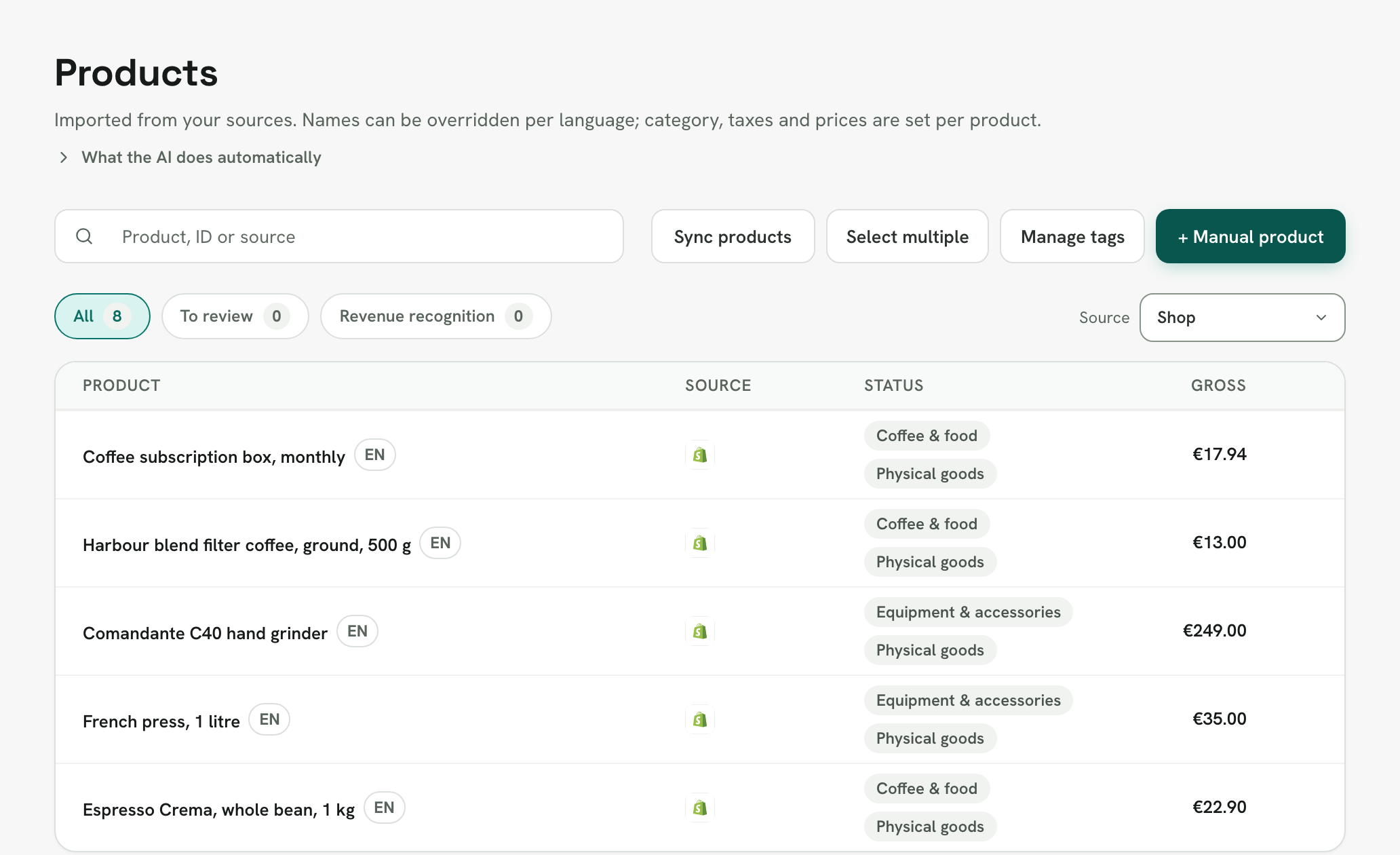
- Products are imported from the shop, including prices. You check the VAT category under Products → All products (see produkte-ust-kategorien).
- The invoice's date of supply (Leistungsdatum) is the shipping date, not the payment date.
- Refunds in the shop create the cancellation invoice (Storno) automatically. So do canceled orders.
- Discounts, shipping costs and gift cards are imported line by line. Shopify gift cards are treated as multi-purpose vouchers.
- If a customer pays partly with a gift card and partly with another payment method, Rechnungskit determines the redeemed gift card share automatically from your shop's payment transactions and books it in the voucher report. Only if shop access is missing (for example an old manual connection without app approval) does a task ask you to enter the amount manually.
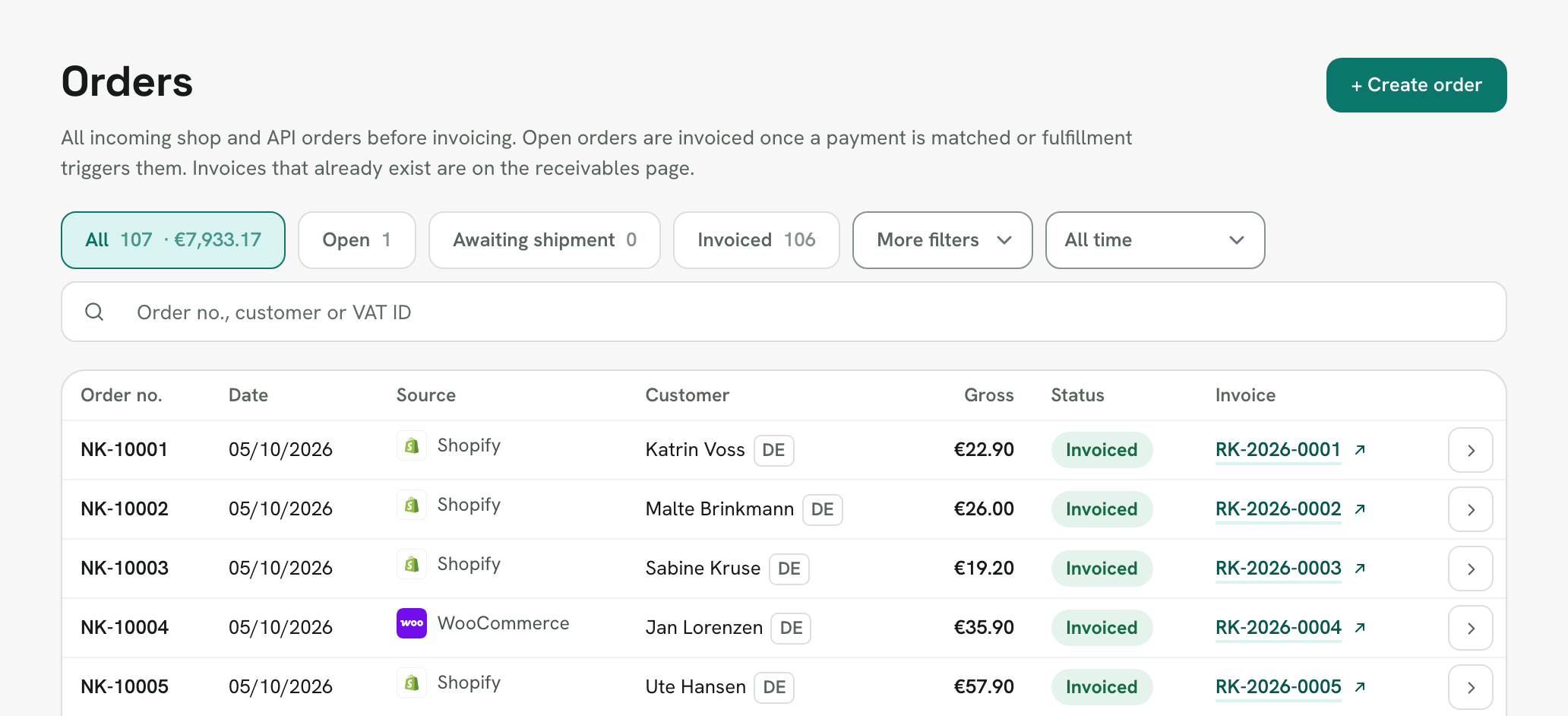
This is how it looks in Rechnungskit afterwards: under Orders, every Shopify order appears with its status and the related invoice.
Under Products → All products you find the imported products with their VAT category.
Special cases at a glance
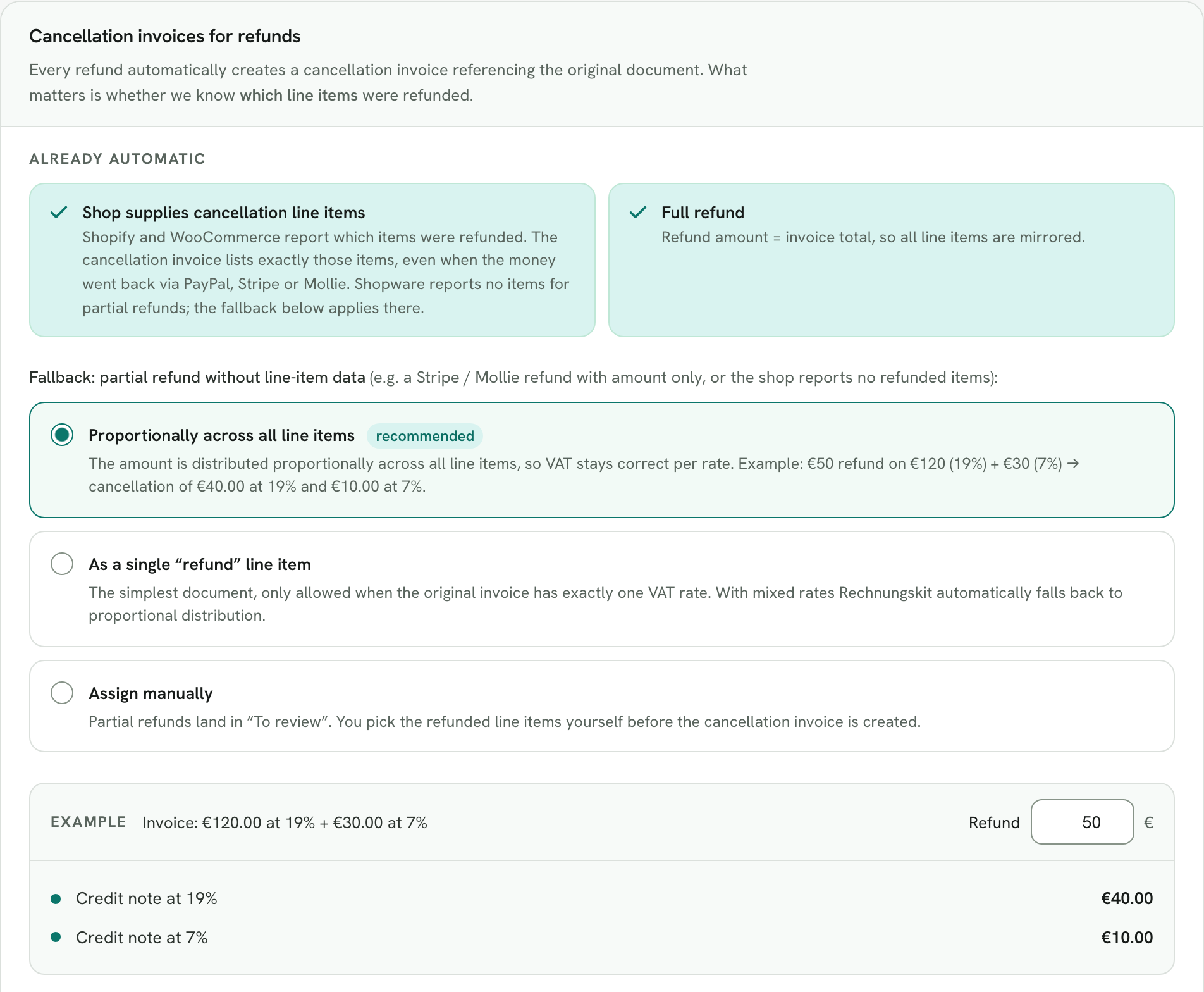
For a partial refund in the shop, the cancellation invoice lists exactly the refunded items Shopify reports, even when the money went back through PayPal, Stripe or Mollie. If the item details are missing, for example with an amount-only refund directly at the payment provider, your document rule decides, under Connections → Document rules, card "Cancellation invoices for refunds": proportionally across all line items (default), as a single line item, or assigned manually (see belege-archiv).
If a customer pays with Shopify store credit, the task "Shopify-Guthaben einordnen" (classify Shopify credit) asks for its origin: "Return or goodwill credit" or "Purchased credit / gift card". The invoice itself stays unchanged. With "Remember for this shop", the classification applies to all following orders (see aufgabe-shop-correction).
Billing through the Shopify App Store (App Pricing)
If you installed Rechnungskit from the Shopify App Store and created a new account in the process, the Rechnungskit fees run through Shopify App Pricing: the base fee and the per-document price appear on your Shopify invoice, and you don't need a SEPA mandate with Rechnungskit. The prices are the same as with direct billing.
For Shopify to bill you, you have to approve the fee in Shopify once. Shopify shows you an approval page with the base fee and the per-document price. You are redirected there right after linking the shop. If you closed or declined the page, you can find the approval again at any time: as a notice at the top of Rechnungskit, under Settings → Billing ("Approve in Shopify") and in the Rechnungskit app in your Shopify admin. Without approval, no documents are billed.
If you uninstall the app and install it again later, Shopify ends the previous subscription automatically. So after reinstalling, Rechnungskit asks you for approval again. You see the running fees in Shopify under Settings → Billing.
Important: if your Shopify subscription ends for good (app uninstalled and not reinstalled), Rechnungskit can no longer bill any fees. Your account is then canceled automatically at the end of the month, and you get an email about it. Until the end of the month everything stays fully active; after that the 90-day window for the free full export starts. You can prevent the cancellation at any time by reinstalling the app and confirming the subscription, or by adding a SEPA direct debit mandate under Settings → Billing.
Existing Rechnungskit accounts that connect a shop from the App Store later stay with their existing billing by SEPA direct debit.
Prepayment and pay by invoice
Both payment methods work with Shopify. What matters is mapping the exact gateway names from your shop under Connections → Connect (see zahlarten-rechnungskauf-vorkasse).
Shipping tax on mixed carts
In short: shipping costs follow the tax rate of the goods. If the cart mixes 7 % and 19 %, Rechnungskit splits the shipping automatically, even if Shopify taxes it at a flat 19 %.
For tax purposes, shipping costs are an ancillary service that shares the fate of the goods (Abschn. 3.10 Abs. 5 UStAE, the German VAT application decree). With mixed rates they are split by the ratio of the gross values of the goods (BFH, judgment of January 22, 2025, XI R 22/22; Abschn. 10.1 Abs. 11 UStAE). The guide Shipping costs and VAT explains the background with examples.
Example: coffee for €30.00 (7 %) and a hand grinder for €70.00 (19 %), shipping €5.90 gross. The goods are in a ratio of 30 to 70.
| Shopify (flat) | Document in Rechnungskit | |
|---|---|---|
| Shipping at 7 % | no line of its own | €1.77 (net €1.65, VAT €0.12) |
| Shipping at 19 % | €5.90 (net €4.96, VAT €0.94) | €4.13 (net €3.47, VAT €0.66) |
| Shipping total | €5.90 | €5.90 |
What this means for you:
- The gross amount stays the same. Your customer pays exactly the shipping from the checkout; only net and tax are split differently. The document shows one line per tax rate, such as "Shipping costs (19 %)" and "Shipping costs (7 %)".
- The same applies without a mix. If the cart contains only 7 % goods (coffee, for example) and Shopify charges shipping at 19 %, Rechnungskit puts all of the shipping at 7 %. A rate that appears on no line item never ends up on the document, regardless of the setting below.
- If the shop already splits it itself (several tax lines on shipping, with Shopify Tax for example), Rechnungskit takes that over unchanged.
To make shop and document match, turn on the option in Shopify under Settings → Taxes and duties that calculates shipping tax proportionally based on the products.
Good to know: checkout and order confirmation in the shop can therefore show a higher VAT amount than the document from Rechnungskit. That is correct and intended; the document is the version that is right for tax purposes. So report VAT from Rechnungskit or the DATEV export, not from the Shopify tax report, and deactivate second invoicing apps in the shop (Order Printer, for example), so that no contradicting documents are in circulation.
Changing the setting: under Connections → Document rules (card "Shipping tax") you switch the behavior per shop connection to "Take the tax from the shop". Rechnungskit then takes the flat shipping tax from the checkout, provided the rate matches a line item, and shows a task instead saying that the shop does not split it. Refunds and cancellation invoices always take over the split of the original document.
Multiple markets and legal entities
If you use Shopify Markets (Shopify Plus) and invoice different markets through different legal entities, for example the EU through a German GmbH and Switzerland through a separate Swiss company, you can limit this connection to certain markets. Under Connections → Connect, a store with several markets shows the section "Filter markets / legal entities". There you choose either "All except these" (for example to ignore the Swiss market if another system invoices it) or "Only these". Orders from excluded markets are not invoiced by this connection and don't even show up here.
If you want to invoice a second market separately in Rechnungskit, connect the same shop from a second Rechnungskit account or project and filter the other way round there. That way each legal entity gets its own number range and its own documents, with just one Shopify app.
In-store sales with Shopify POS
Rechnungskit is not a POS system. In Germany, sales through an electronic cash register come with their own obligations: the records must be protected by a certified technical security device (TSE) (§ 146a Abs. 1 AO), the customer gets a receipt (obligation to issue receipts, § 146a Abs. 2 AO), and the data must be exportable through the uniform digital interface (§ 4 KassenSichV, in practice the DSFinV-K export for tax audits). In practice there is also the end-of-day report (Z report) and the cash book. With Shopify POS a POS app such as OpenFiskal handles this. Rechnungskit does not cover these obligations.
So that an in-store sale doesn't get an extra invoice and the revenue doesn't appear twice in the books, Rechnungskit recognizes orders from Shopify POS by their sales channel. What happens with them is up to you under Connections → Document rules on the card "In-store sales (Shopify POS)", per Shopify connection:
- Do not invoice, my POS app books them (default for new connections): in-store sales appear under Orders as "POS", with no document and no task. Their payments, including card payments through Shopify Payments, and their refunds stay visible for payout reconciliation but don't count as revenue in the reports and the DATEV export. The in-store share is shown separately in the payout.
- Invoice like online orders: only makes sense if you don't use a POS app with a TSE at the register.
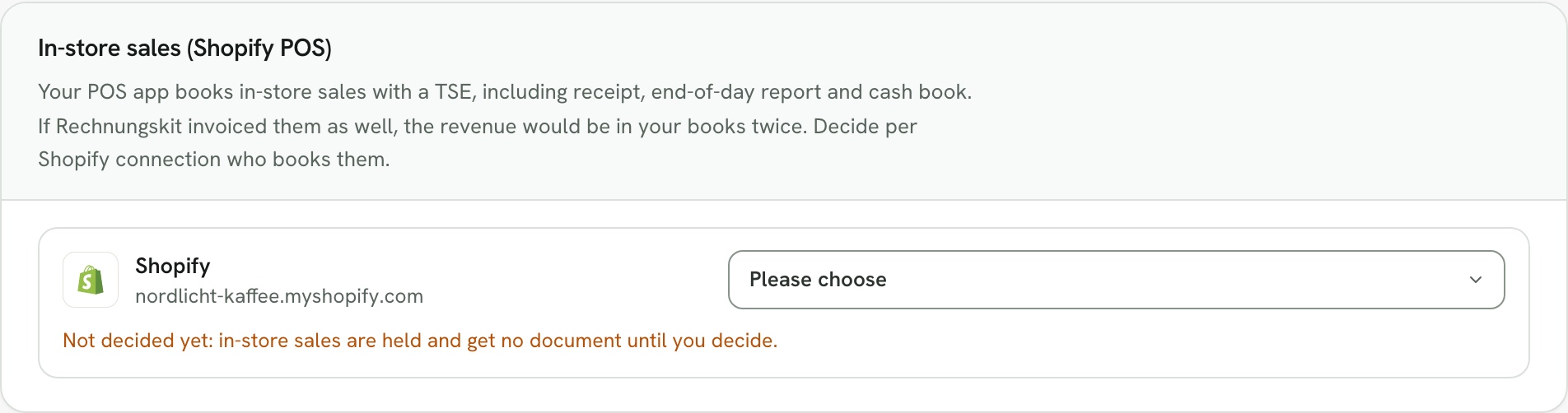
For connections that existed before this setting, nothing is set yet. With the first in-store sale a task appears, and owners and admins get an email right away. Until you decide, in-store sales are put on hold: no document, and the payments wait. Once you decide, Rechnungskit files them correctly right away. If you change the rule, Rechnungskit updates open orders and their payments. Invoices already issued stay unchanged (GoBD).
Agree this with your tax advisor: a Shopify Payments payout contains online and in-store revenue together. Rechnungskit does not book the in-store share as revenue. How it is offset against the bookings of your POS app is best decided with your tax advisor.
If you only sell on site occasionally, for example to regular customers who pick up their goods, create the sale as a normal Shopify order, for example as a pickup order. That produces a proper invoice like any online order. If the customer pays cash, mark the order as paid in Shopify before you mark it as picked up. That way the invoice carries the paid note right away. Whether you need a register with a TSE for cash sales on site is best clarified with your tax advisor.
Limits
- Historical import: by default the Shopify API reads orders from the last 60 days. Older orders require extended access (read_all_orders), which Shopify grants separately. If you need older orders in Rechnungskit, write to support@rechnungskit.de and we'll sort out the import with you.
- Orders created manually in Shopify without a payment through a connected provider go through manual products or the payment method mapping.
- Shopify POS: Rechnungskit recognizes in-store sales and, if you want, does not invoice them, but it does not run a register. A POS app handles TSE, Z report and cash book; see the section above.
- Voucher sales through Shopify Store Credit have their own rules; Rechnungskit guides you through the classification (return credit or purchased voucher).
Where to find it in the app
Rechnungskit is not a tax advisory or law firm. This article explains general principles and does not replace advice from a tax advisor (Steuerberater, § 5 StBerG) or a lawyer (§ 3 RDG). Rechnungskit is built for businesses based in Germany and prepares documents, tax rates and bookings automatically. How your specific case is treated remains your decision, ideally together with your tax advisor or a lawyer.