Discount codes at checkout
Updated
Discount codes give buyers a price reduction in Rechnungskit Checkout, either a percentage or a fixed amount, for all products or only selected ones. The buyer types the code at checkout, sees the new total right away and pays less. The invoice, the DATEV export and the OSS return all use the reduced price. Codes work for one-time purchases through checkout links and the shop page, and for subscriptions, where they cover the first payments or all of them.
Creating a code
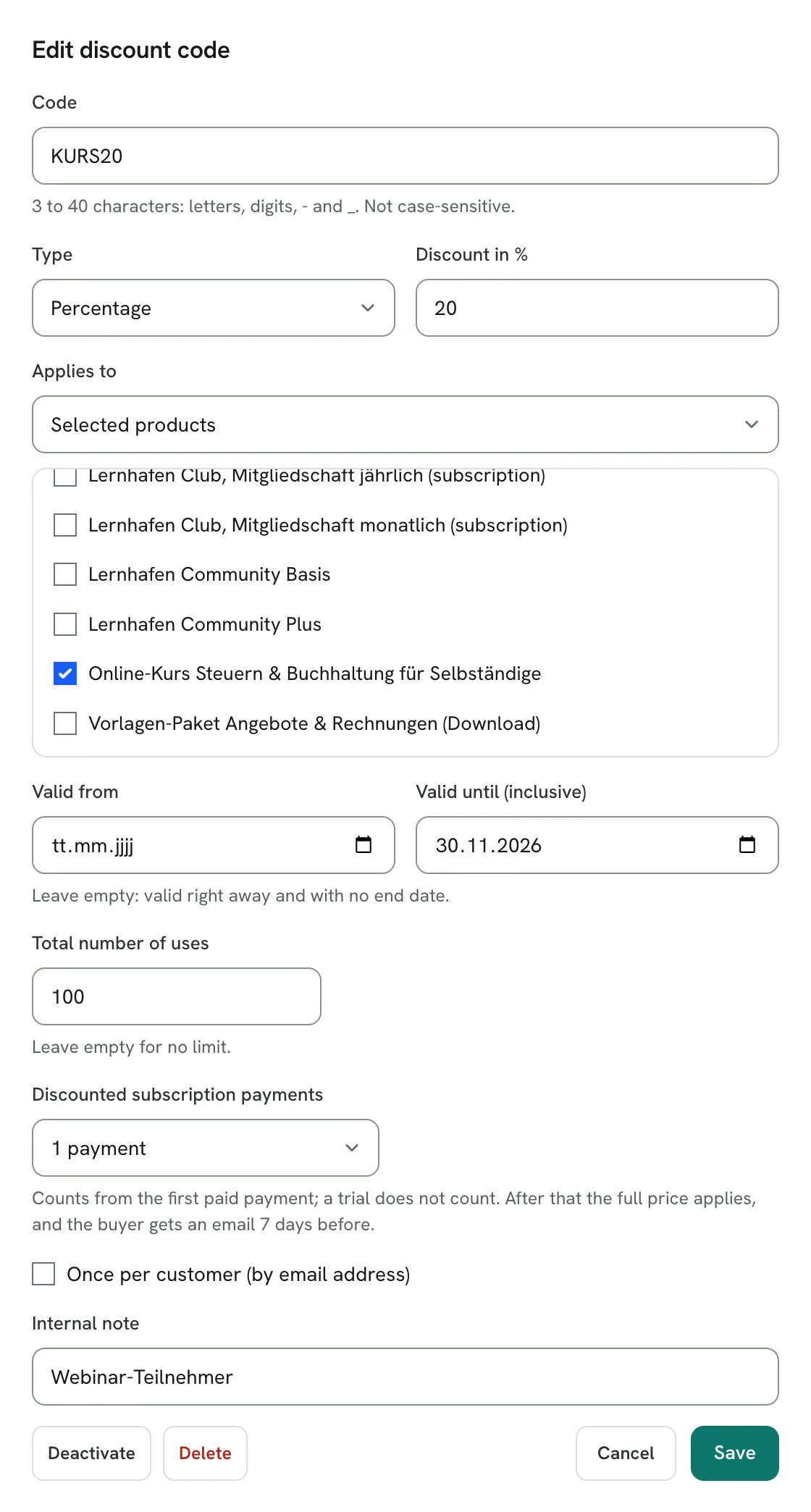
In the menu under Products → Shop page, open the "Discount codes" tab and first switch on the discount code field for the checkout. Without that switch no buyer sees the field, even if you have already created codes. Then click "New code":
| Field | Meaning |
|---|---|
| Code | 3 to 40 characters: letters, digits, - and _. Case does not matter, so SUMMER10 and summer10 are the same code. |
| Type and discount | a percentage (0.01 to 100 %) or a fixed amount in euros, gross and per order |
| Applies to | all products, or selected products with a checkout, including subscription products and add-ons |
| Valid from, valid until | optional calendar days; the last day is included |
| Total number of uses | optional, empty means no limit |
| Once per customer | each email address can use the code once |
| Discounted subscription payments | 1, 2, 3, 6 or 12 payments, or all; shown once you sell subscriptions |
| Internal note | only for you, the buyer never sees it |
For each code the list shows the discount, what it applies to, the validity, the uses (with a limit, as "3 of 50"), the total discount granted and the status: Active, Scheduled, Expired, Used up or Deactivated.
What the buyer sees
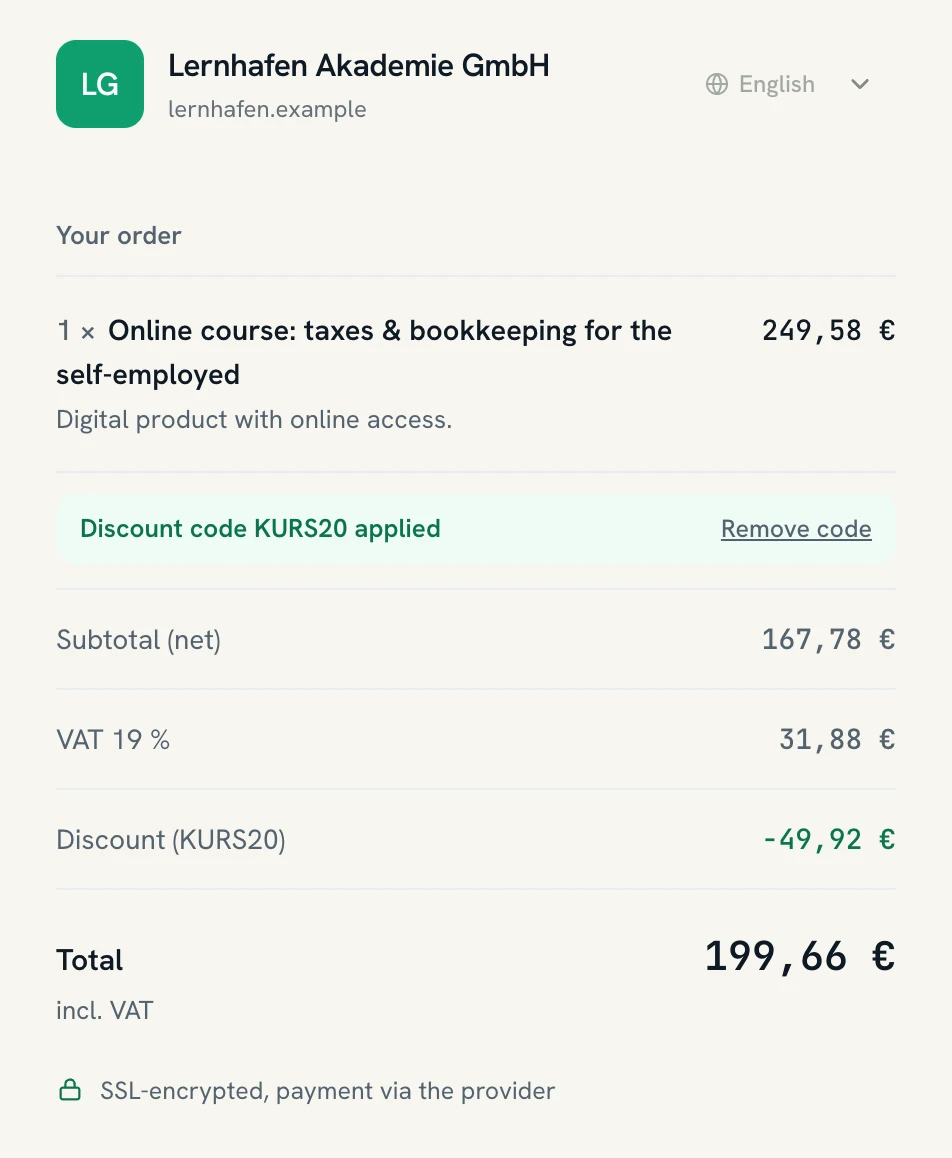
Below the products in the order summary there is a "Discount code?" link. Clicking it opens the field with an "Apply" button. If the code is valid it shows as applied with "Remove code", and a separate "Discount (SUMMER10)" line above the total shows the amount taken off. If it is not valid, the checkout says why, for example that it has expired, has been used up or does not apply to anything in the cart. These messages exist in all six checkout languages.
To share a link with a code, add ?code=SUMMER10 to a checkout link or to your shop page link. The code is then filled in and applied when the page opens, which suits newsletters and social media posts. A code on the shop page link carries over into the checkout.
How the discount is calculated
- A percentage reduces each affected line by that share of its gross amount, rounded to the cent.
- A fixed amount applies once per order, not per item. It is spread across the affected lines by their gross value, and the parts add up to exactly the amount. If it is larger than those lines, it is capped at their total.
- Shipping is never discounted.
- On the shop page, the free shipping threshold compares the goods after the discount. If the code takes the goods below the threshold, shipping is charged again.
- After the discount the goods must still cost at least €0.50, so a code that would make an order free cannot be applied.
- For a business order with reverse charge, the discount applies to the net price the buyer sees.
Invoice, VAT and DATEV
A discount code is a price reduction at the time of sale. Rechnungskit does not treat it as a voucher within the meaning of § 3 Abs. 13 UStG (German VAT Act); it lowers the price. VAT is calculated on what the buyer actually spends (§ 10 Abs. 1 UStG). That is why the invoice shows the discount on every line it affects: the unit price unchanged, below it a line such as "Discount SUMMER10 (10 %)", and below that the reduced net amount. The invoice lists the net amount and the tax separately for each VAT rate, as § 14 Abs. 4 Satz 1 Nr. 7 and 8 UStG requires, so with 7 % and 19 % items in one order the code reduces each rate by its share. The details are on Discounts on invoices.
In the e-invoice (ZUGFeRD or XRechnung) the discount is a line allowance with the reason "Rabattcode SUMMER10". The invoice total matches the amount paid to the cent. The DATEV export books the revenue after the discount; there is no separate discount account. The OSS return, the EC Sales List and the VAT overview also use the reduced amounts.
Discount codes on subscriptions
The subscription checkout has the same "Discount code?" field as one-time purchases, and ?code= on a subscription link works the same way. The code covers as many paid payments as you set under "Discounted subscription payments". After that the subscription charges the full price.
- The checkout shows the payment schedule, for example "The first 3 payments €9.00 each, then €12.00 per month." "Due today" already includes the discount.
- A free trial does not count. The first discounted payment is the first paid one after the trial.
- A percentage applies to the price of each payment. A fixed amount applies to each payment as a whole, not per item, and is split across the main plan and add-ons. Every discounted payment stays at €0.50 or more.
- With "selected products", a code fits a subscription when the subscription product or a booked add-on is on the list, and only that line is discounted. Otherwise the checkout says "This discount code does not apply to this subscription."
- Every discounted payment gets its own invoice with the discount line on each item, just like a one-time purchase. The invoice total matches the amount charged.
- If a discounted charge fails, the retry keeps the discount and does not use up another payment.
- A subscription counts as one use however many payments are discounted. The use counts once the subscription is active and is freed again if the very first payment fails.
The confirmation email to the buyer states the payment schedule. So does the email with the "Manage subscription" link if the buyer requests it again later; the schedule then counts from the next payment. 7 days before the first full amount is charged, the buyer gets an email such as "From the next regular charge on 01.12.2026, €12.00 per month will be charged." For SEPA direct debit this is the pre-notification of the new amount. The mandate in the subscription checkout sets that notice at least 5 calendar days before the debit, instead of the standard 14 calendar days in the European Payments Council's SEPA direct debit rules (SDD Core Rulebook, europeanpaymentscouncil.eu). If the email goes out late, after an outage for example, the SEPA debit waits until the fifth calendar day after the email, and the email gives that date. If a failed discounted charge is retried before then, that retry still charges the discounted amount. The customer portal shows how many discounted payments are left, and in your subscription list the subscription carries a discount label with the code. The MRR in the subscription overview uses the full price.
If the buyer changes the quantity, plan or add-ons in the middle of a discounted period, the pro-rata charge or credit works from the discounted prices, which is what they actually pay for that period. The discount carries over: a percentage applies to the new price, a fixed amount stays the same. The number of discounted payments does not change. An immediate cancellation also refunds pro rata from the discounted amount actually paid.
When a use counts
- When the buyer pays through your payment provider, clicking the order button holds one use of the code for 60 minutes. Once the provider reports the payment, the use is final. If the buyer cancels or the payment fails, the use is free again.
- With pay by invoice or prepayment the order is binding when the buyer clicks, so the use counts straight away.
- With a limit set, two buyers trying to take the last free use at the same moment cannot both get it. The second one sees "used up".
- If you cancel a pay-by-invoice order in full before any money has arrived, or set an unpaid prepayment order aside with "Ignore order", the use is free again. Undo "Ignore" and it counts again. A cancellation or refund after payment does not free the use, because the discount was granted.
- Once per customer checks the email address, ignoring upper and lower case. If the same buyer comes back from the payment page and orders again, the new order replaces their earlier reservation.
Report per code
Click a code in the list, or "Report", to see every use of that code, newest first: date, order number (linked to the order and the invoice), the buyer with a shortened email address, the gross amount paid after the discount, the discount and the status. For a subscription there is a link to it, and the amount is the first payment. The totals at the top show the number of uses, revenue after the discount and the total discount. They count redeemed uses only.
| Status | Meaning |
|---|---|
| Redeemed | paid, or for pay by invoice and prepayment, ordered |
| Reserved | the buyer is on their payment provider's page right now (60 minutes at most) |
| Released | abandoned, failed or cancelled before payment; not counted |
With many uses the report shows 25 per page.
Webhook and ad conversions
The checkout.paid webhook reports the amount paid after the discount as amountCents. The end of the payload carries discount with the code and the discount in cents, or null without a code. Each entry in items has lineGrossCents (the line amount after the discount) and discountGrossCents next to the list price unitGrossCents. Details are in Checkout webhooks. Subscription webhooks include the code and the number of discounted payments.
Ad conversions (Meta Conversions API and the Meta, Google and TikTok pixels) send the amount paid after the discount as the value. For a subscription that is the first payment, discounted if the code covers it. Meta also receives the code as coupon.
Editing, deactivating, deleting
Until someone uses the code you can change everything and delete it. After the first use, the code, type, discount and products stay fixed because orders and invoices already show them. You can still change the validity, the limit, once per customer and the note. Deleting is no longer possible then, but "Deactivate" stops the code immediately.
Refunds and withdrawals
A refund is always the amount actually paid after the discount. When a buyer withdraws through the withdrawal button, Rechnungskit works with the discounted lines, because what has to be returned is what the buyer paid (§ 357 Abs. 1 BGB, German Civil Code). A cancellation invoice copies the discounted lines including the discount reason, and the VAT is corrected by the refunded amount (§ 17 Abs. 1 UStG).
Not available yet
- A separate discount account in the DATEV export.
- Codes that make an order free (100 %, or more than the goods are worth).
- Discounts on shipping.
Where to find it in the app
Recent changes
Rechnungskit is not a tax advisory or law firm. This article explains general principles and does not replace advice from a tax advisor (Steuerberater, § 5 StBerG) or a lawyer (§ 3 RDG). Rechnungskit is built for businesses based in Germany and prepares documents, tax rates and bookings automatically. How your specific case is treated remains your decision, ideally together with your tax advisor or a lawyer.