Manual orders and invoices
Updated
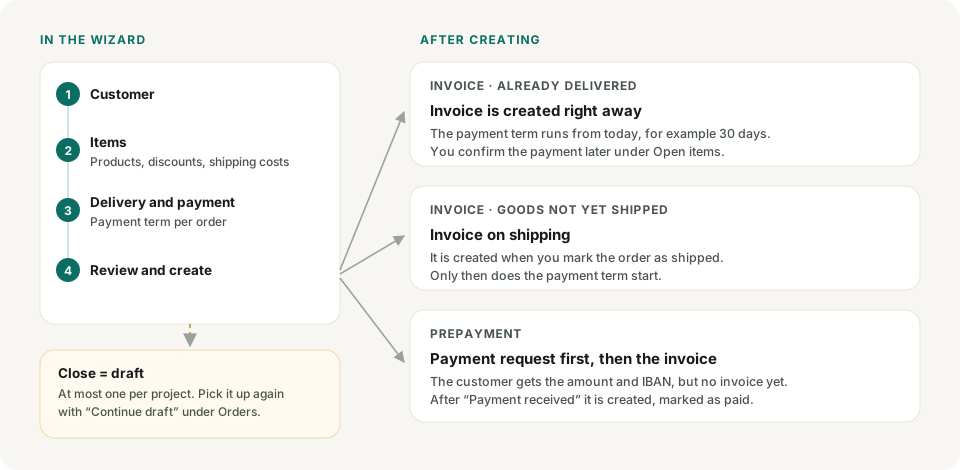
Not every order comes in through a shop or payment provider. Under Orders you create one yourself with "Create order", typically for B2B customers who pay by bank transfer. A wizard guides you through four steps: Customer, Items, Delivery & payment, Review. If you close it early, nothing is lost; the order stays saved as a draft.
Customer
You choose an existing customer or create a new one, with address, email and, if needed, VAT ID (USt-IdNr.) or Leitweg-ID (routing ID) for public-sector customers. If a business in another EU country has a VAT ID, we check it with the Federal Central Tax Office (BZSt) when you click Next; if it is confirmed, you invoice without German VAT (reverse charge). Without confirmation, the invoice is held until the result is in or you decide under Tasks.
Choosing items
Items are always products from your catalog. In the Items step, the top shows what is already in the order, and below, under "Add a product", your catalog. One click on a product adds it with quantity 1, and every further click increases the quantity by one. Products already in the order are highlighted in green, show for example "✓ 2× in this order" and, instead of "Add", the button "+1". The search finds products by name or SKU. Without a search you see the first six, and "Show all products" shows the whole catalog. Prices in the catalog are net prices.
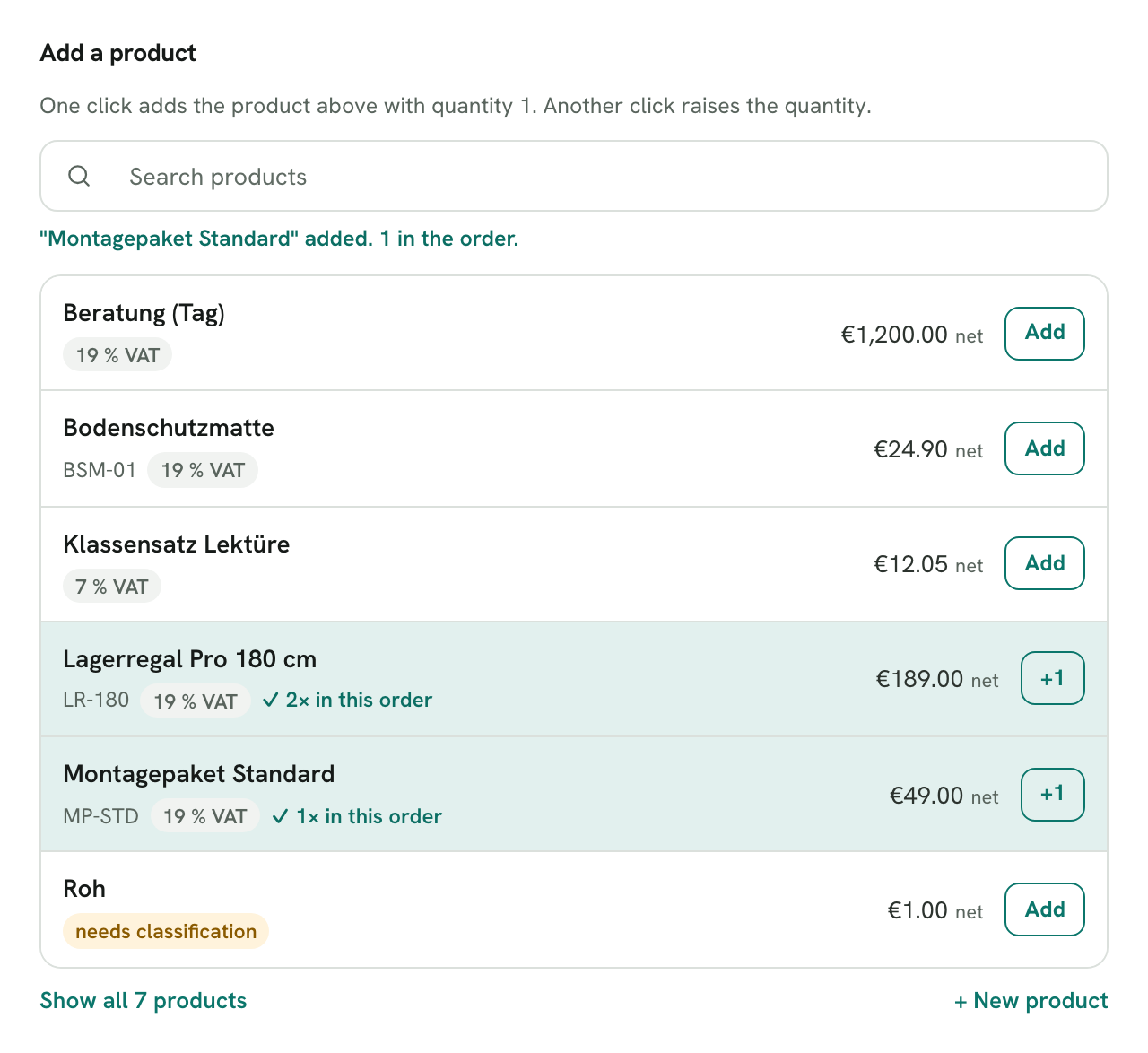
You change quantity and net price in the item itself. There is also a discount per line and an order discount with its own label. The € / % switch next to the field decides whether the discount is in euros or percent; below the field you then see the equivalent, for example "= −€18.90". In the amount fields you type only the number; the euro or percent sign is already there. You never type in the tax rate; it comes from the product's VAT category. If a product shows "needs classification", you set the product type and VAT category right in the wizard when adding it; that then applies to all further invoices. You create a completely new product with "+ New product".
Shipping costs
With "+ Shipping costs" you enter a net amount for shipping. On the invoice it appears as its own line "Versandkosten" (shipping costs). You don't pick a tax rate for it: shipping is an ancillary service and takes the rate of the items. If the order mixes rates, for example 7 % and 19 %, we split the shipping costs by the ratio of the gross values (BFH XI R 22/22). The background is explained in Shipping costs and VAT.
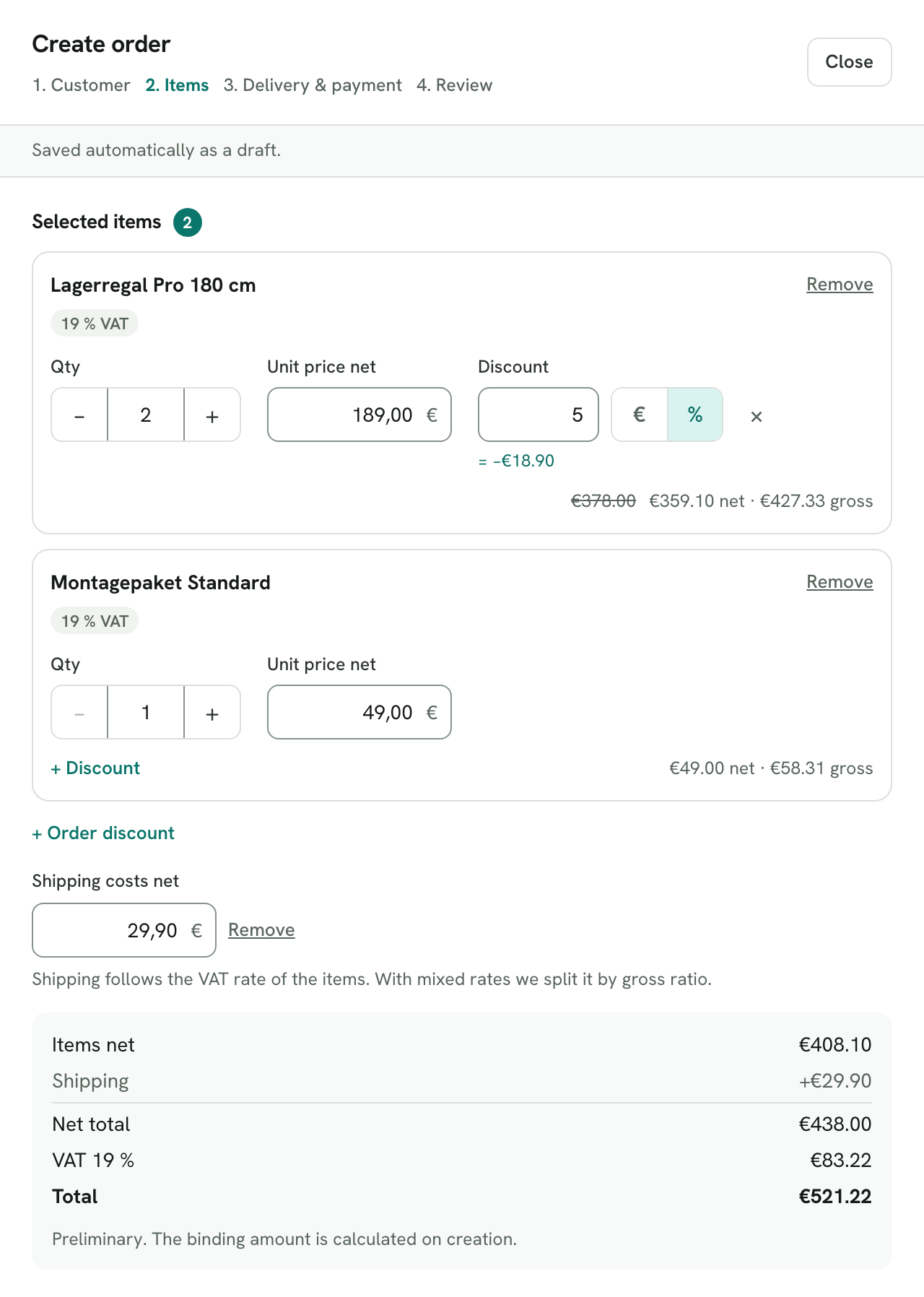
The totals at the bottom are a preview. Rechnungskit calculates the binding amount when the order is created, and exactly this amount appears on the invoice and in the open item.
Payment term per order
With the payment method invoice, you set the payment term for this one order: Immediately, 7, 14 or 30 days, or under "Other" a number between 0 and 365. It is prefilled with your default from Settings → Document rules. If you deviate from it, that only applies to this order; the default stays as it is. Below it you see the due date if the invoice is created today.
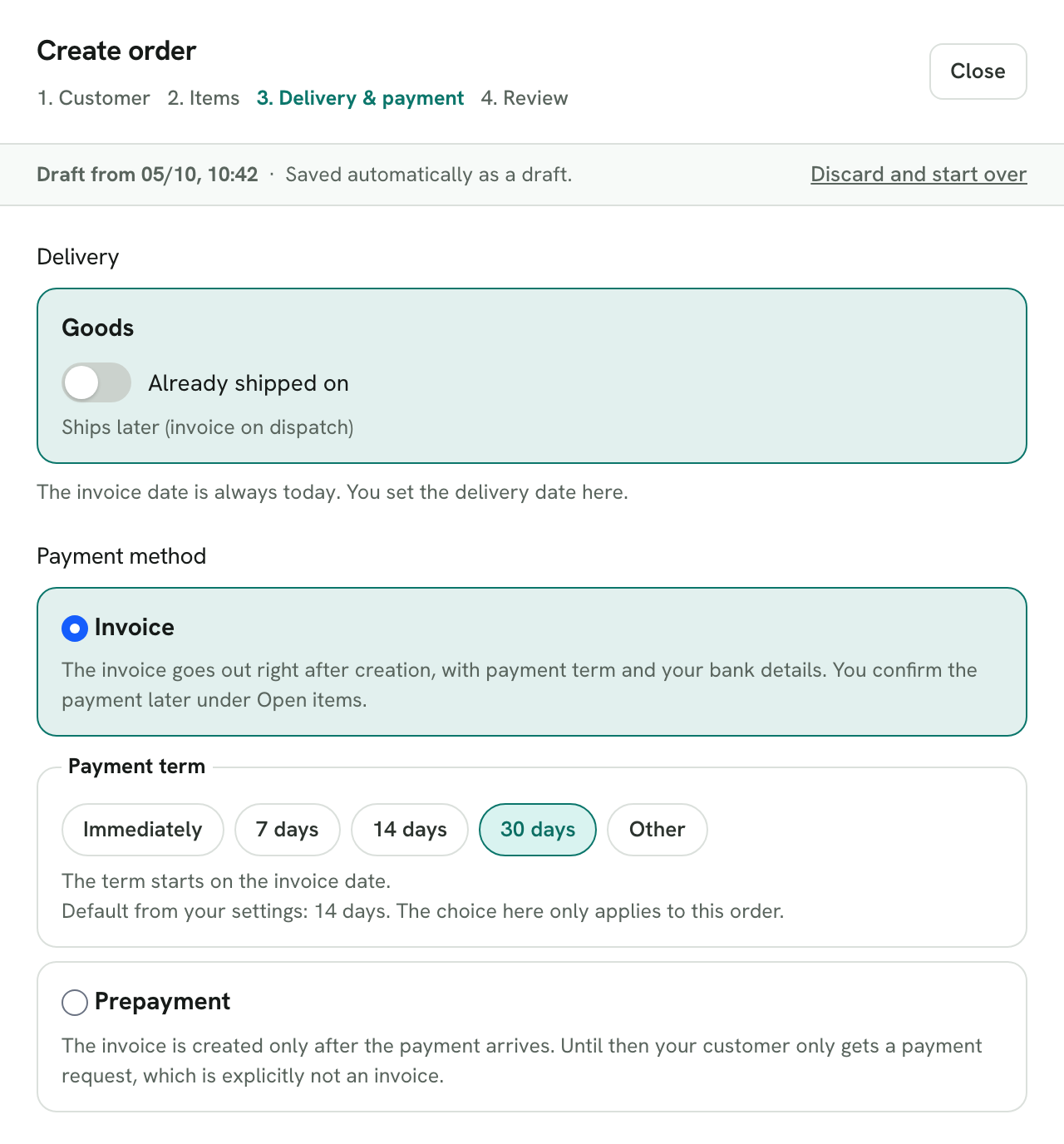
The payment term always runs from the invoice date. The invoice then says, for example, "Zahlbar innerhalb von 30 Tagen bis zum …" (payable within 30 days by …), and for Immediately "Zahlbar sofort nach Erhalt, spätestens am …" (payable immediately on receipt, at the latest on …). The same due date appears in the e-invoice and in the open item. Prepayment has no payment term, because the invoice is only created after the payment arrives. What applies legally to payment terms and how to word them is explained in Payment terms on the invoice.
Invoice or prepayment
With the payment method invoice, the invoice is created immediately, with your payment term and your bank details; for this you need an IBAN in the settings. For goods not shipped yet, it is only created with "Mark as shipped", so the date of supply is correct. You confirm the payment later under Open items, partial payments included.
With prepayment, the order waits. If you want, your customer gets a payment request by email with the amount, IBAN and order number as the payment reference; it is explicitly not an invoice and carries no invoice number. You adjust the text under Settings → Email delivery on the tab "Payment request"; the template is worded neutrally, without the informal or formal German "you". As soon as the money is there, you click "Payment received" on the order. The invoice is then created with a paid note. If less than the total has arrived, no invoice is created; you can then switch the order to invoice, the invoice goes out immediately and the partial amount is booked as a down payment. In test mode we do not send emails to customers.
The invoice date is always the day of creation. You set the date of supply: a date, a period or, for goods, the shipping day.
Saving and continuing a draft
As soon as a customer name or an item has been entered, Rechnungskit keeps saving your input as a draft. If you close the wizard with "Close", with Esc or by clicking outside it, the draft is kept. Under Orders, the note "Unfinished order" then appears at the top with the customer, number of items, amount and the time of the last change. "Continue draft" opens it where you left off, in the same step and with all details. "+ Create order" also opens the saved draft.
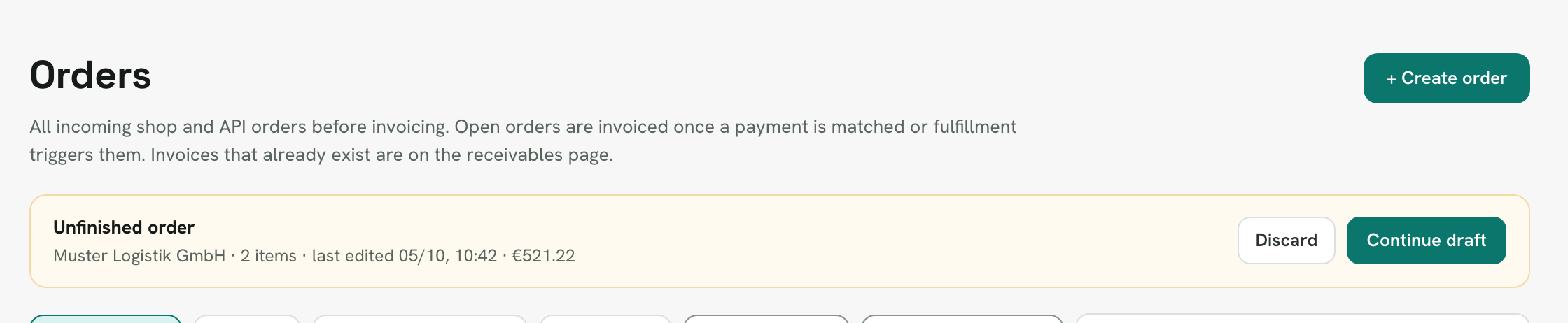
There is at most one draft per project. A new draft replaces the old one, and everyone on the team with access to Orders sees the same one. When you create the order, the draft is gone. If you no longer need it, click "Discard"; in the wizard this is called "Discard and start over". A draft is not an order yet. It has no order number, appears neither in the order list nor in the archive or the DATEV export, and has no tax effect. Products you have since deleted drop out of the draft when you continue it.
Cancellation
You can cancel invoices from manual orders on the invoice page, fully or partially, always with a reason. This creates a cancellation invoice (Storno) with its own number; the original stays unchanged in the archive. If the customer does not pay, that is not a cancellation: close the open item as uncollectible, and your tax advisor writes off the receivable under § 17 Abs. 2 Nr. 1 UStG once the payment is uncollectible. Orders from shops and payment providers are still canceled through their own refund.
Where to find it in the app
- Orders "Create order", "Continue draft", "Payment received" and the payment request
- Connections Document rules The default payment term
- Settings Email delivery The text of the payment request
- Open items Payments received and partial payments for invoices with a payment term
- Invoices The invoice and its cancellation
Rechnungskit is not a tax advisory or law firm. This article explains general principles and does not replace advice from a tax advisor (Steuerberater, § 5 StBerG) or a lawyer (§ 3 RDG). Rechnungskit is built for businesses based in Germany and prepares documents, tax rates and bookings automatically. How your specific case is treated remains your decision, ideally together with your tax advisor or a lawyer.